Spaces
A space (called a workspace in older versions) is a separate set of collections, requests and environments. Use one space per project, team or client so their requests and environments never mix.
Chapar always has a Default space, and starts in the space you used last.
The Spaces page
Click Spaces in the navigation bar to see every space as a card.
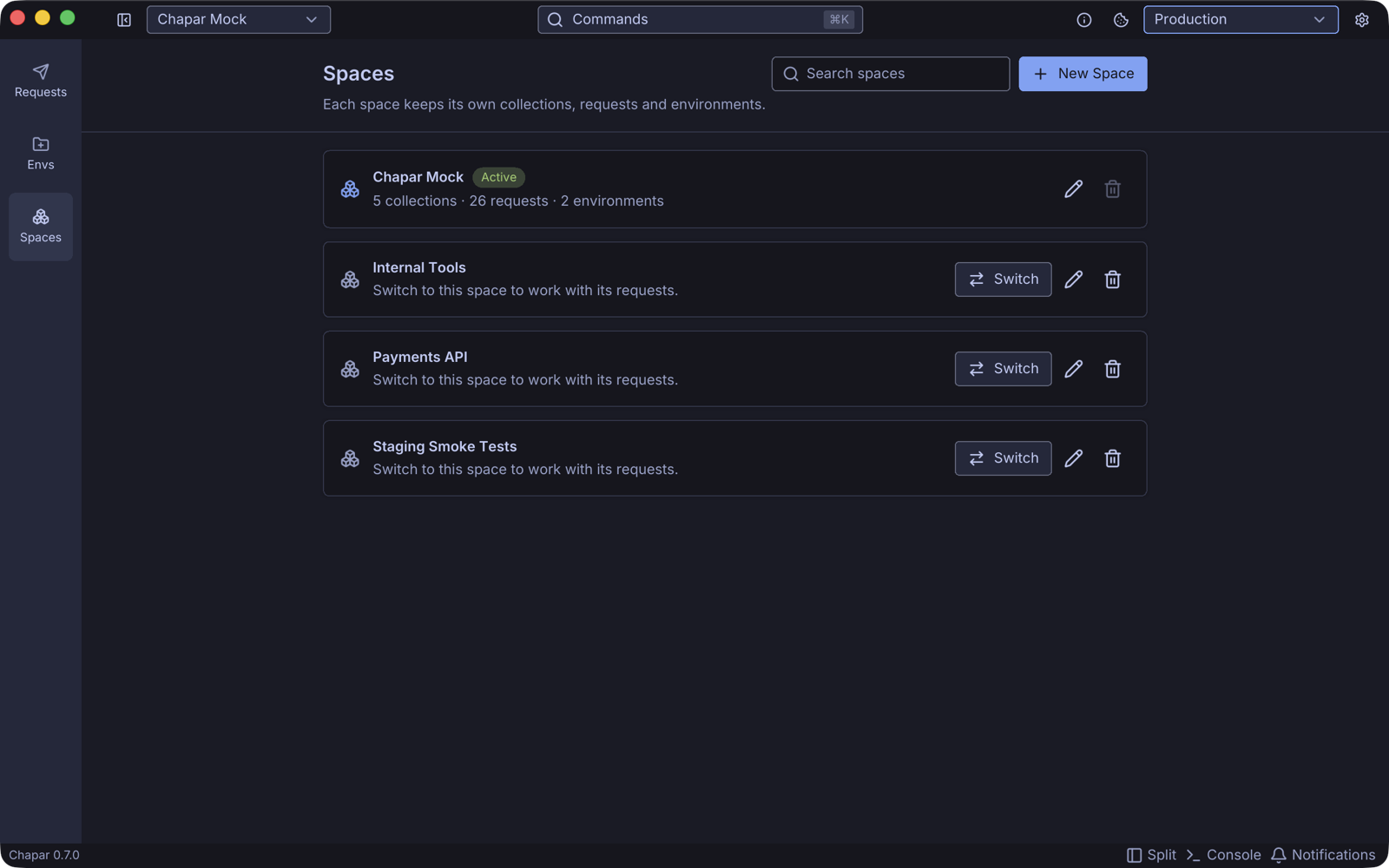
- The space you are in is marked Active, with a count of its collections, requests and environments.
- Search spaces filters the cards by name.
- Each card has Switch, Rename (pencil) and Delete (trash) buttons.
Create a space
- On the Spaces page, click New Space.
- Type a name and click OK. Leave it empty to get New Space.
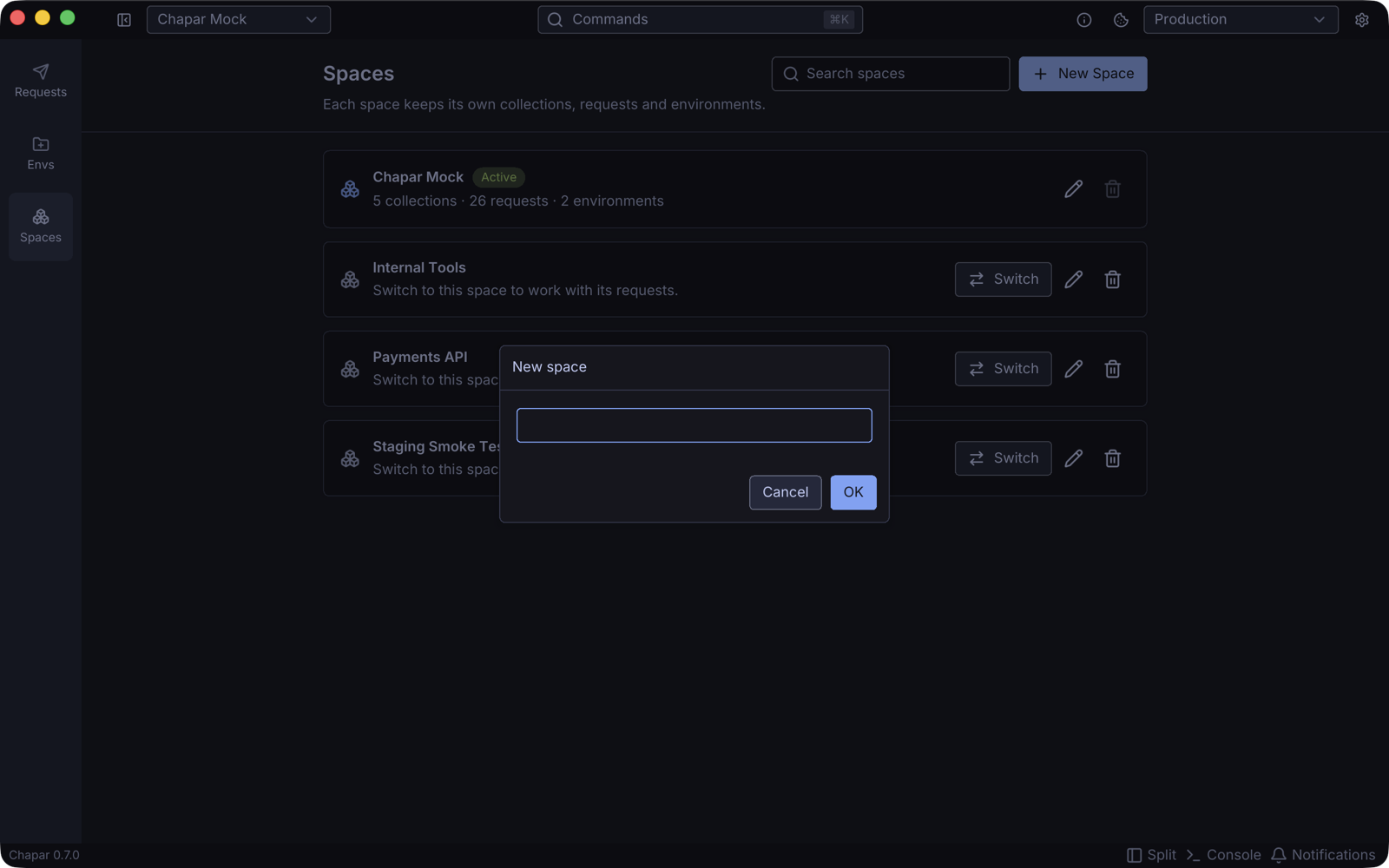
The new space starts empty. Switch to it to add collections, requests and environments.
Switch spaces
Pick a space in the selector at the left of the title bar, or click Switch on its card.
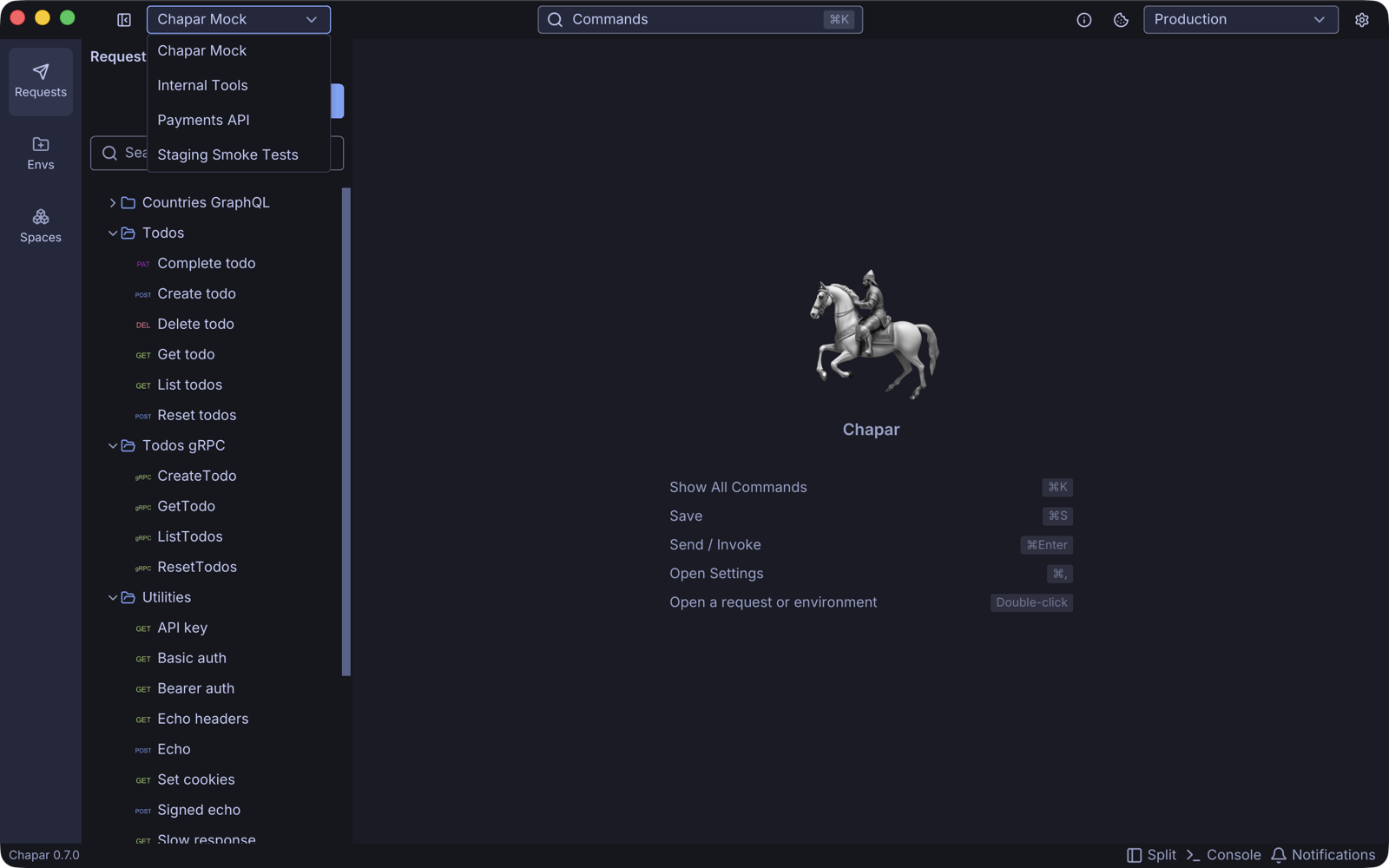
If some open tabs have unsaved changes, Chapar asks before it switches, because switching closes them and their changes are lost. Save your work first, or choose No to stay.
Rename a space
Click the pencil on the card, type the new name and click OK. The space’s folder on disk is renamed too. The Default space can’t be renamed.
Delete a space
Click the trash icon on the card and confirm. The space and all its collections, requests and environments are deleted, and this can’t be undone.
You can’t delete the Default space or the space you are in; switch to another space first.
Spaces on disk
Each space is a folder in the workspace folder (~/.config/chapar by default), so you can back it up, copy it to another machine or keep it in git. See Where your data lives.