Requests and Collections
A request is one saved HTTP, gRPC or GraphQL call. A collection is a folder of requests that can also give them shared headers, authentication and notes. Requests and collections live in the Requests page of the current space.
Create requests and collections
Click New above the request tree to create an HTTP request. Click the arrow next to it to choose the kind:
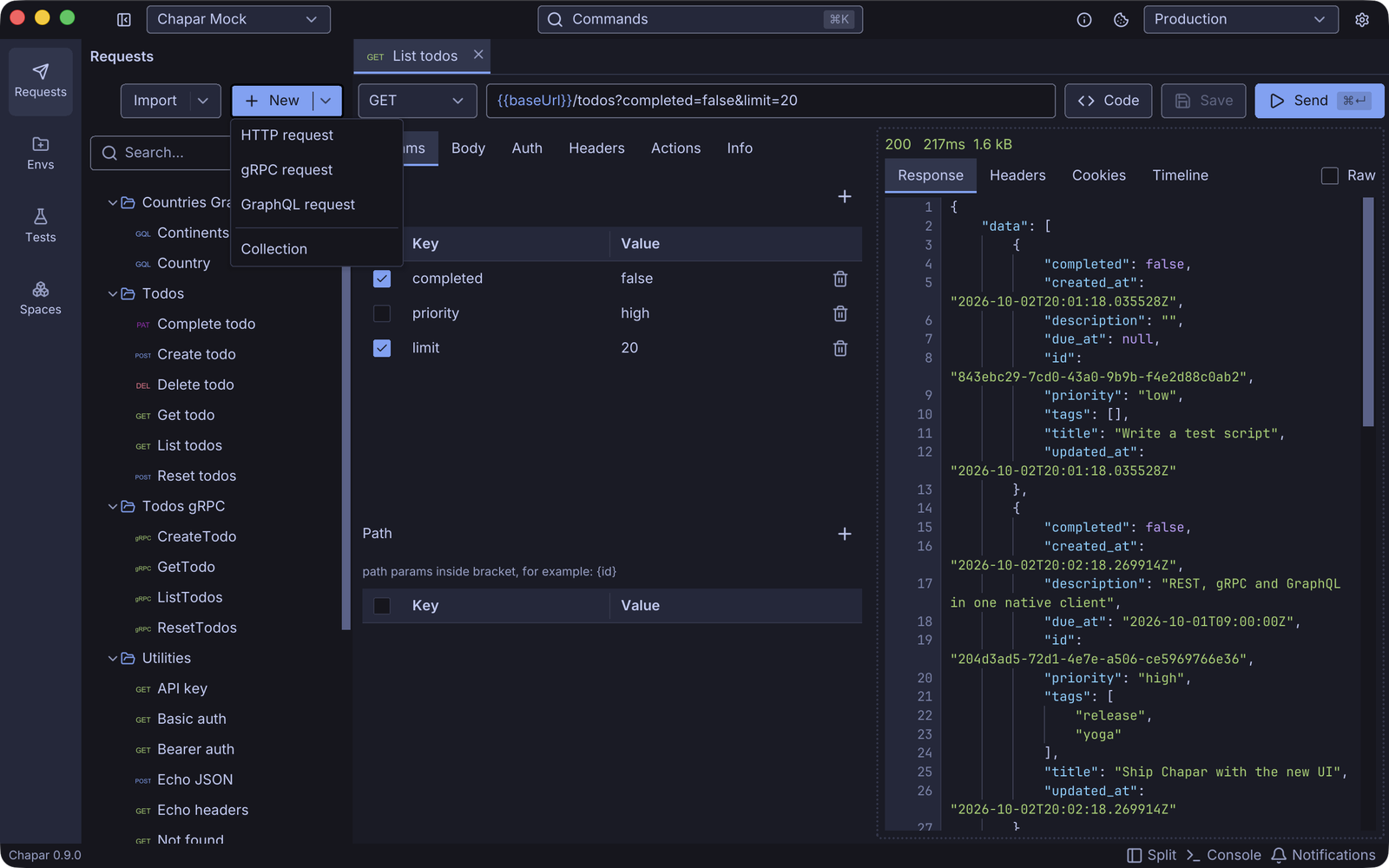
| Item | Creates |
|---|---|
| HTTP request | A REST/HTTP request. See HTTP Requests. |
| gRPC request | A gRPC call. See gRPC Requests. |
| GraphQL request | A GraphQL query with variables. |
| Collection | An empty collection. |
A new request is called New Request and opens in a tab. Give it a name on its Info tab, where you can also write a description.
To create a request inside a collection, right-click the collection and choose New HTTP request, New gRPC request or New GraphQL request.
The request tree
The sidebar shows the collections of the space, with the requests inside them, and requests that aren’t in a collection. Each request has a badge for its method (GET, POST, …), gRPC or GQL.
- Click a request to open it in a tab, and a collection to expand it.
- Search filters the tree by name.
- Drag a request onto a collection to move it there, or to the top level of the tree to take it out of its collection.
- Right-click any item for its menu:
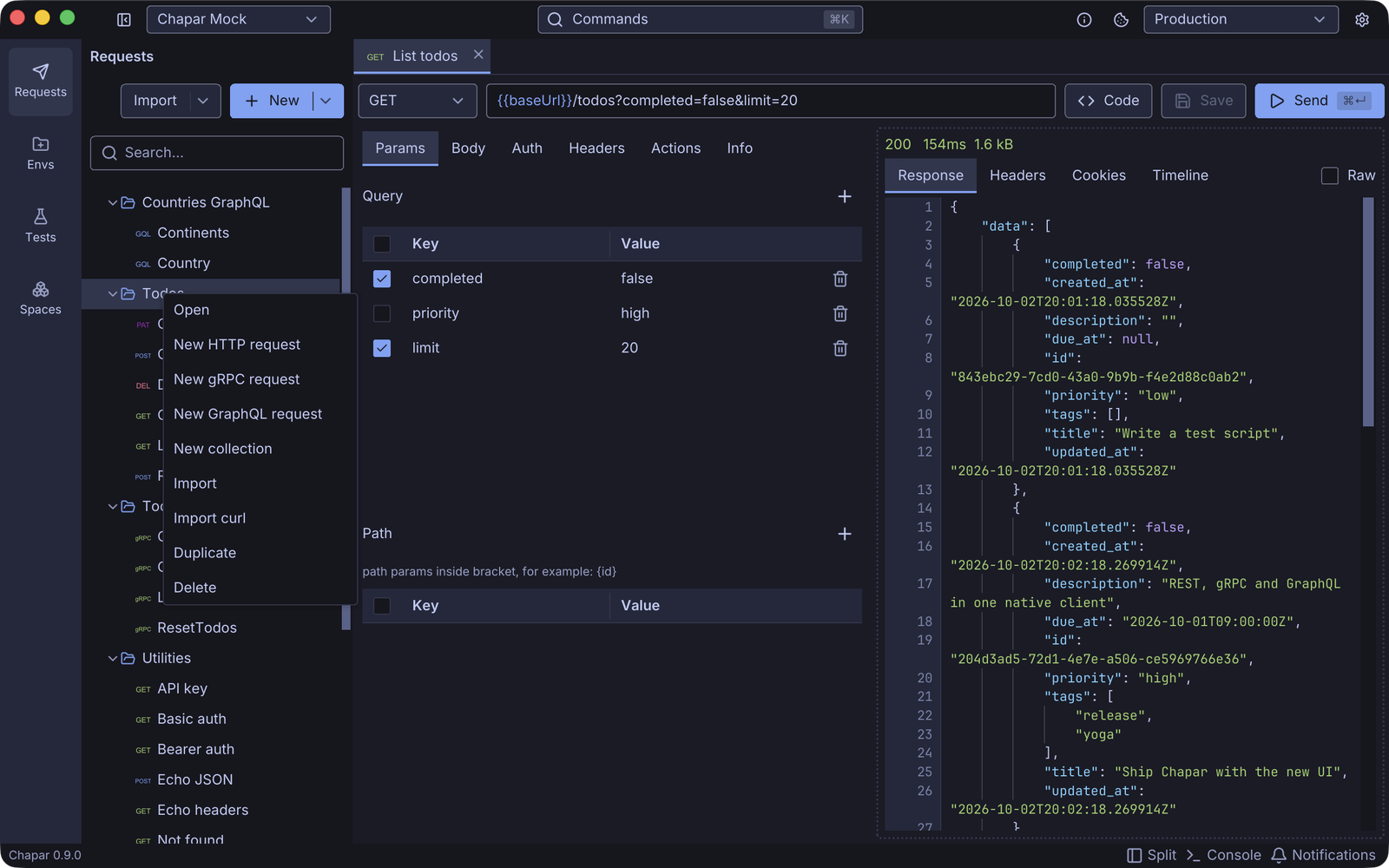
| Item | What it does |
|---|---|
| Open | Opens the collection’s settings in a tab (collections only). |
| New HTTP / gRPC / GraphQL request | Creates a request in this collection. |
| New collection | Creates a collection. |
| Import | Imports a Postman collection, OpenAPI spec or proto file. See Import. |
| Import curl | Creates a request from a curl command, in this collection. |
| Duplicate | Copies the request, or the collection with all its requests. The copy of a request is named … (copy). |
| Delete | Deletes the request, or the collection and all its requests. |
Collection settings
Open a collection (right-click › Open) to edit what its requests share:
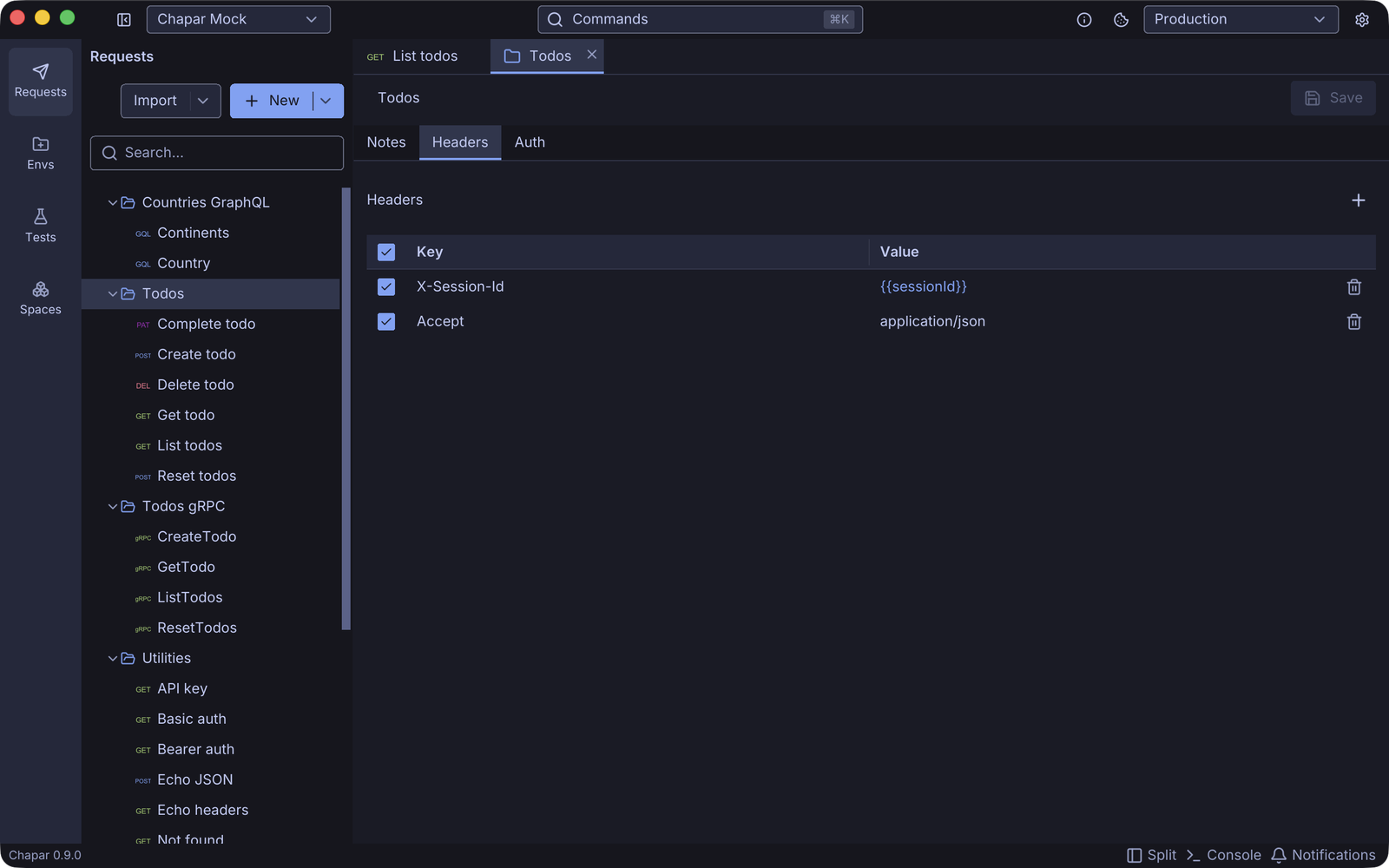
- Notes: free text about the collection, for example how to get a token.
- Headers: sent with every request in the collection (and as metadata with gRPC requests). A header that the request sets itself, with the same name, wins.
- Auth: Bearer token, Basic or API key authentication. A request uses it when its own Auth type is Inherit.
Collection headers and auth can use {{variables}} like everything else.
Tabs
Every request, collection and environment you open gets a tab. Tabs show the request method, ENV for environments or a folder for collections, and a filled dot when there are unsaved changes.
| Shortcut (macOS) | Action |
|---|---|
| ⌘S | Save the tab |
| ⌘W | Close the tab |
| ⌘⇧] / ⌘⇧[ | Next / previous tab |
| ⌘1 … ⌘8 | Go to tab 1 … 8 |
| ⌘9 | Go to the last tab |
| ⌘P | Go to Tab: a searchable list of open tabs |
On Windows and Linux use Ctrl instead of ⌘.
Right-click a tab for Close, Close Others, Close to the Right, Close to the Left, Close Saved and Close All. If some of those tabs have unsaved changes, Chapar asks once. When the tab strip is full it scrolls, and a +N button lists every open tab.
Command palette
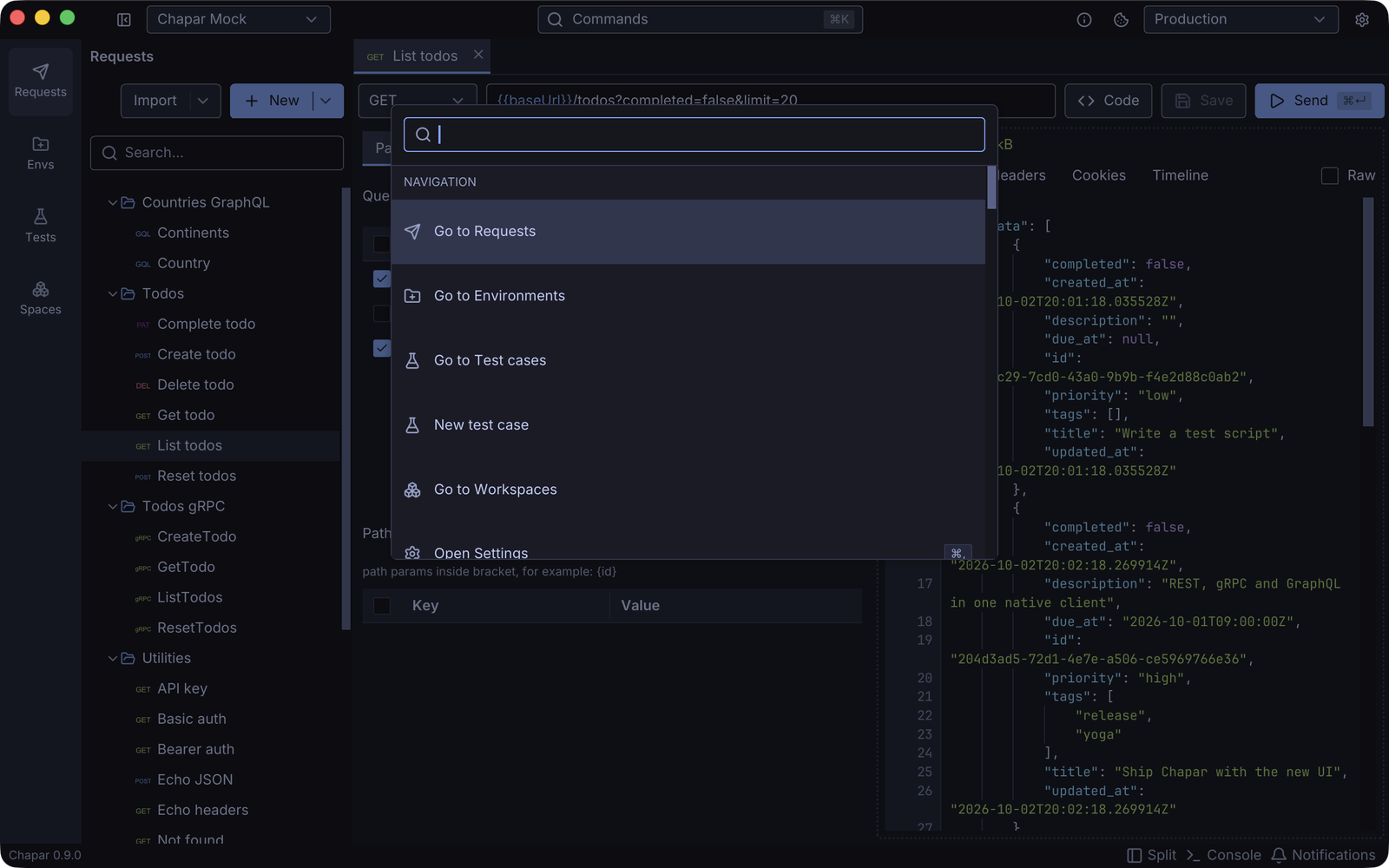
Press ⌘K (Ctrl+K) or click Commands in the title bar. Type to find any request, collection or environment and open it, or to run a command: save, send, go to a page, open Settings or restart a language server.
Requests on disk
Each request is a YAML file named after it, in its collection’s folder (collections/<collection>/) or in requests/ when it isn’t in a collection. You can edit these files by hand or review them in git; Chapar picks up the changes when it loads the space. If a file is malformed, Chapar skips it, logs why in the Console and shows a warning, so one bad file never stops the app from starting.