Request Actions
Real API flows depend on earlier responses: you log in to get a token, create a resource to get its id, then use them in the next request. The Actions tab of HTTP and gRPC requests automates this without code. For anything more involved, use a Python script.
The tab has three sections:
| Section | Runs | Options |
|---|---|---|
| Before | Before the request is sent | None, Trigger request, Python |
| After | After the response arrives | None, Set environment, Python |
| Extract | After the response arrives | Any number of extraction rules |
Values that actions write go into the active environment and are saved to it, so the next request can use them as {{name}}. With No Environment selected there is nowhere to write them, and Set environment and Extract do nothing.
Before: trigger another request
Choose Trigger request and pick a request from the list. Every time you send this request, Chapar first sends the one you picked, runs its own actions, and then sends this one.
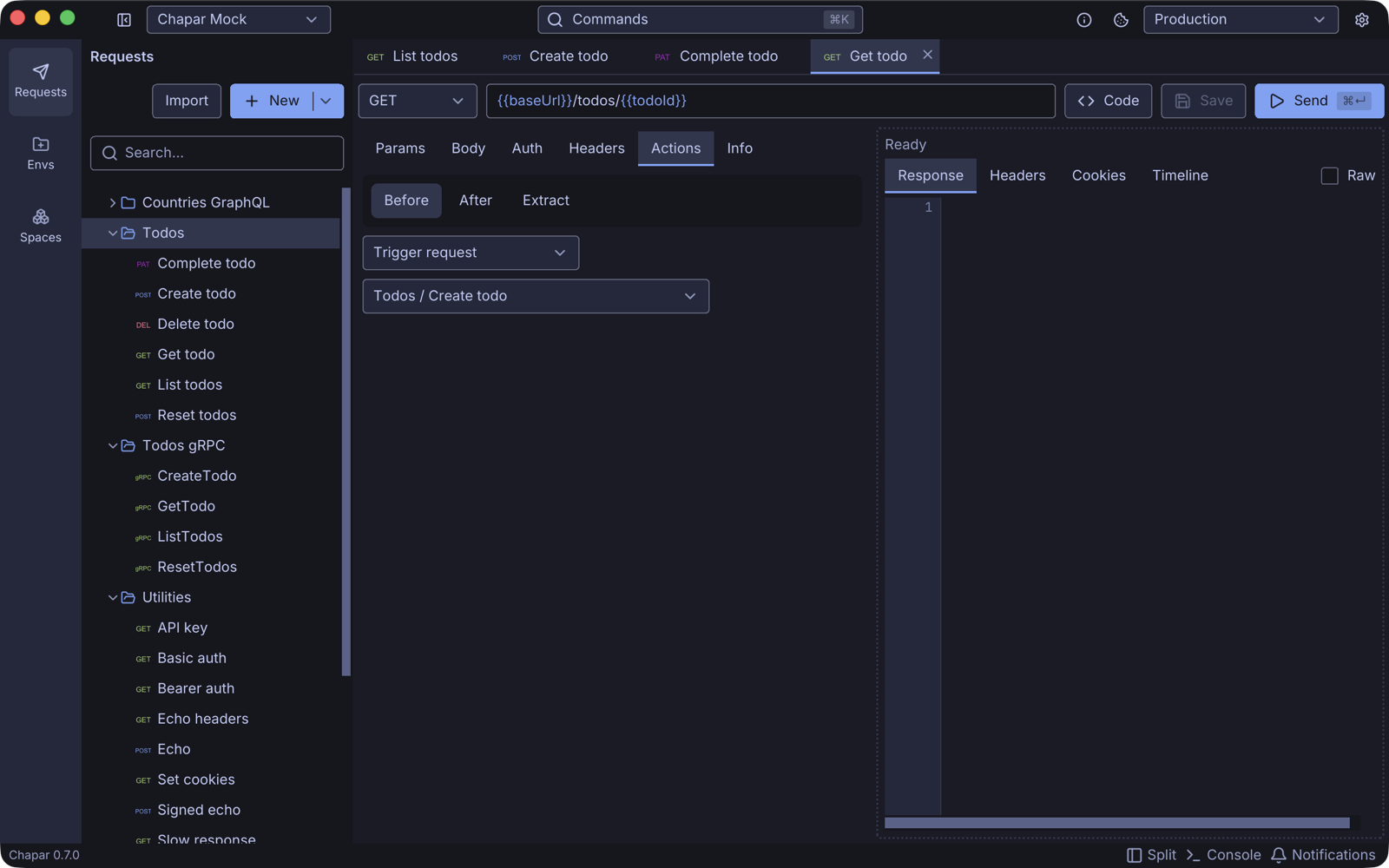
A typical use is a Get todo request whose URL is {{baseUrl}}/todos/{{todoId}}, triggering Create todo, which extracts todoId from its response. Sending Get todo creates a fresh todo and then fetches it.
If the triggered request fails, or one of its post-request actions fails, this request is not sent and the error is shown.
After: set an environment variable
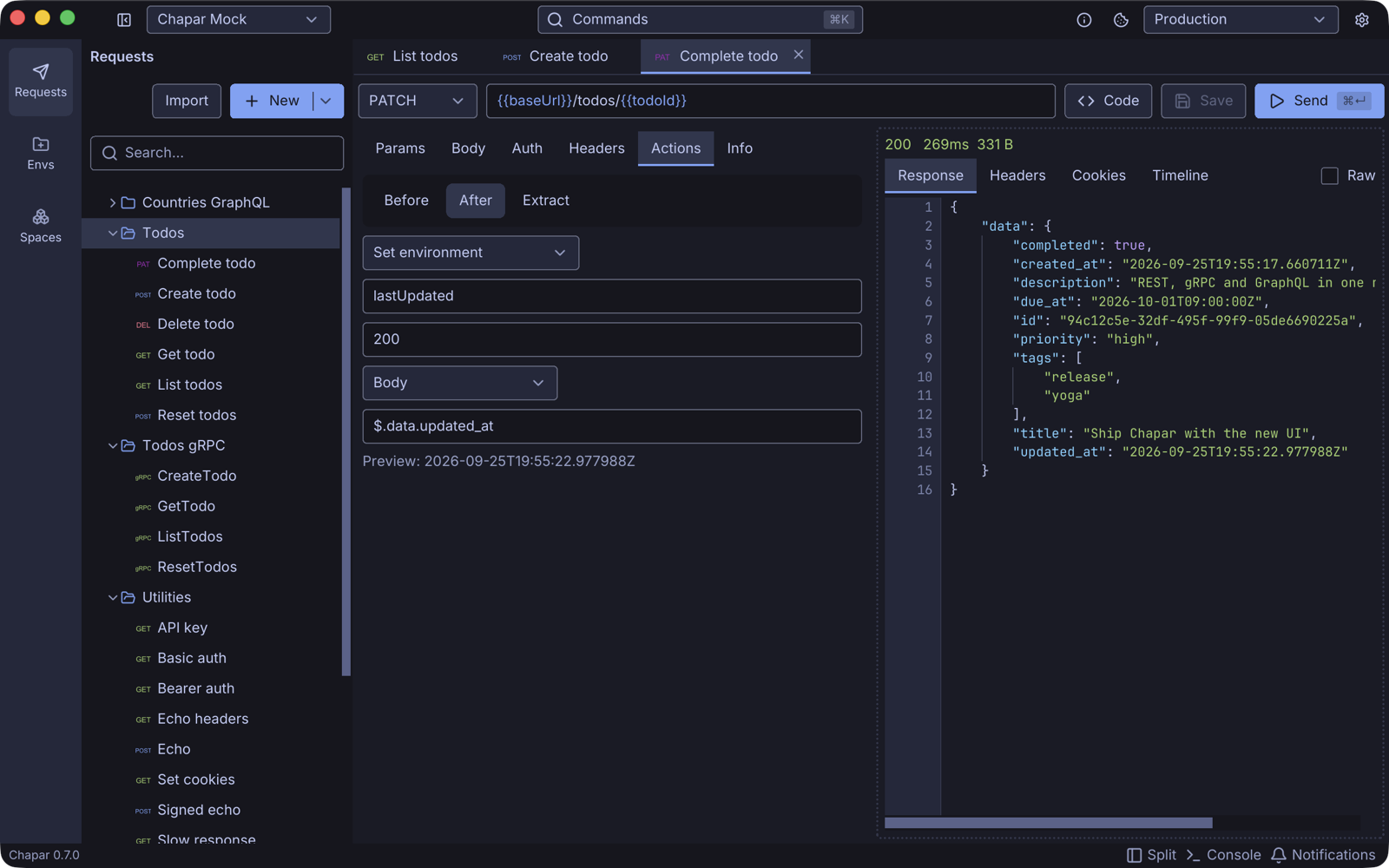
Choose Set environment to copy one value from the response into the environment:
| Field | Meaning |
|---|---|
| Env key | The variable to set, for example lastUpdated. |
| Status code | Only set it when the response has this status, for example 200. For gRPC use the status code number (0 is OK). |
| From | HTTP: Body, Header or Cookie. gRPC: Body, Metadata or Trailers. |
| JSON Path / Header / Key | For the body, a JSONPath such as $.data.updated_at. Otherwise the header, cookie, metadata or trailer name. |
After you send the request once, a Preview line shows the value the action would set from the last response.
Extract: several values at once
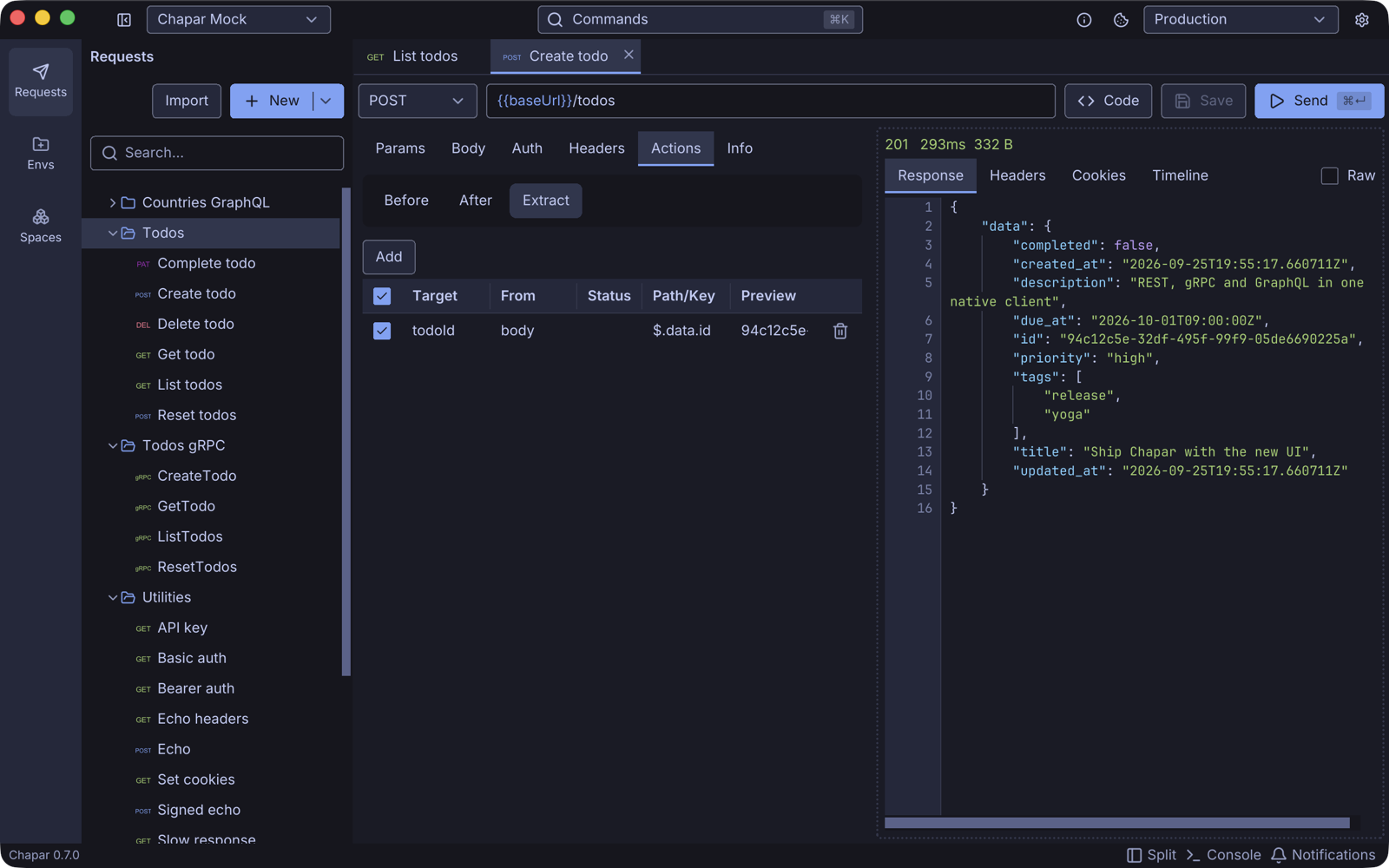
Extract holds a table of rules, so one response can fill several variables. Click Add for each rule:
| Column | Meaning |
|---|---|
| Checkbox | Turns the rule on or off. |
| Target | The environment variable to set. |
| From | body, header or cookies for HTTP; body, metadata or trailers for gRPC. |
| Status | Only apply the rule for this status code. Leave it empty to apply it to any status. |
| Path/Key | A JSONPath for body, or the header, cookie, metadata or trailer name. |
| Preview | The value the rule found in the last response. |
Rules that read a header and the body, from the same response:
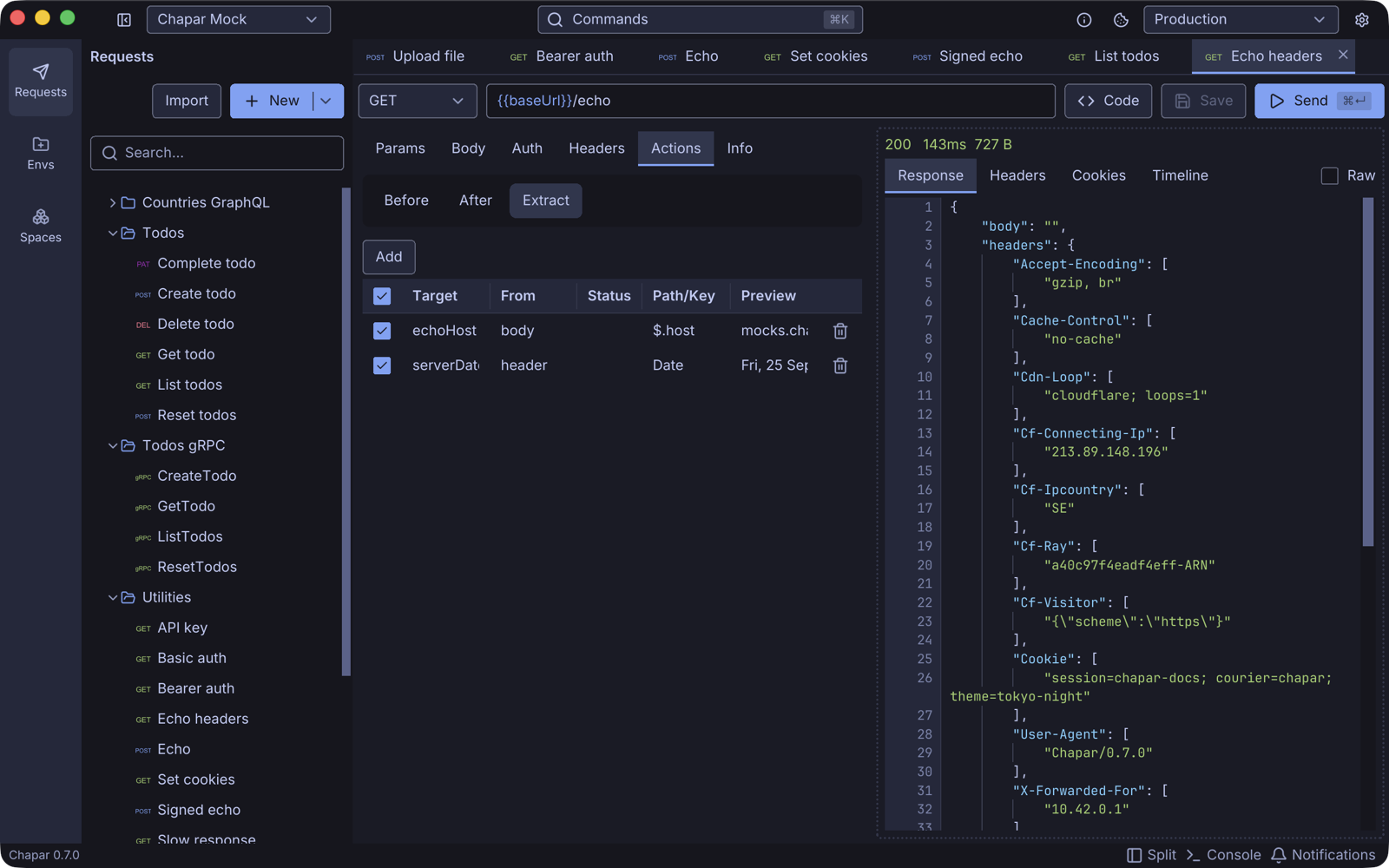
If a rule fails, for example because its path doesn’t match, the other rules still run, and the response shows which rule and path failed.
chapar.env.set(...).JSONPath cheat sheet
| Path | Selects |
|---|---|
$.token | The token field of the top-level object |
$.data.id | id inside data |
$.data[0].id | id of the first item of the data array |
$.data.user.email | A nested field |
chapar.env.set("count", response.json()["total"]) stores any value, as text or JSON.Where to see what happened
Open the response’s Timeline tab. The Pre-request and Post-request steps show what ran, how long it took, and any error.
When to use a script instead
Use a Python script when you need to compute a value (a signature, a timestamp, a hash), change the request before it is sent, skip a request, set several values with logic, or check the response with tests.