HTTP Requests
An HTTP request tab has three parts: the request bar at the top, the request pane with its tabs, and the response pane. The panes sit side by side or stacked; switch with Split in the footer.
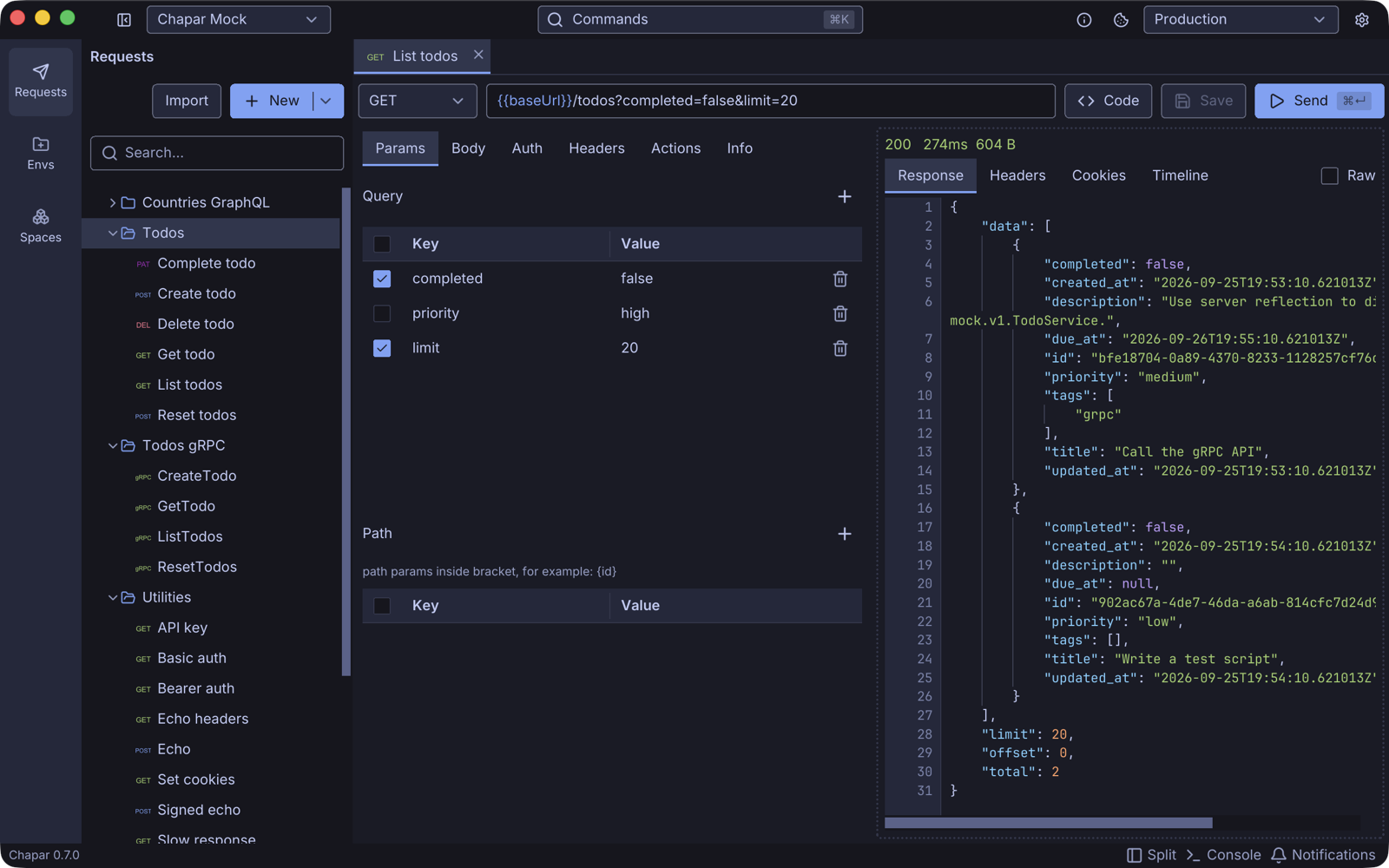
The request bar
| Control | What it does |
|---|---|
| Method | GET, POST, PUT, DELETE, PATCH, HEAD, OPTIONS, CONNECT or TRACE. |
| URL | The full URL, with {{variables}} where you need them, for example {{baseUrl}}/todos/{id}. Press Enter in the field to send. |
| Code | Shows the request as code in other languages. See Generate code. |
| Save | Saves the request (⌘S). Enabled when there are unsaved changes. |
| Send | Sends the request (⌘Enter). |
Variables are filled in when you send: the request you saved keeps its placeholders. See Variables and Functions.
Params
The Params tab has two tables.
- Query: the query string. It stays in sync with the URL: edit either one and the other follows. Uncheck a row to leave that parameter out without deleting it.
- Path: values for the
{name}placeholders in the URL path. For the URL{{baseUrl}}/todos/{id}, add a row with the keyid. Chapar fills the placeholder in when it sends the request.
Body
Pick the body type in the selector at the top of the Body tab:
| Type | Content-Type Chapar sets | Editor |
|---|---|---|
| None | none | No body. |
| JSON | none, add it on the Headers tab | A code editor with highlighting, completion of {{variables}}, and a Format button that pretty-prints the JSON and keeps {{variables}} intact. |
| XML | none, add it on the Headers tab | A code editor with XML highlighting. |
| Text | none, add it on the Headers tab | A plain editor. |
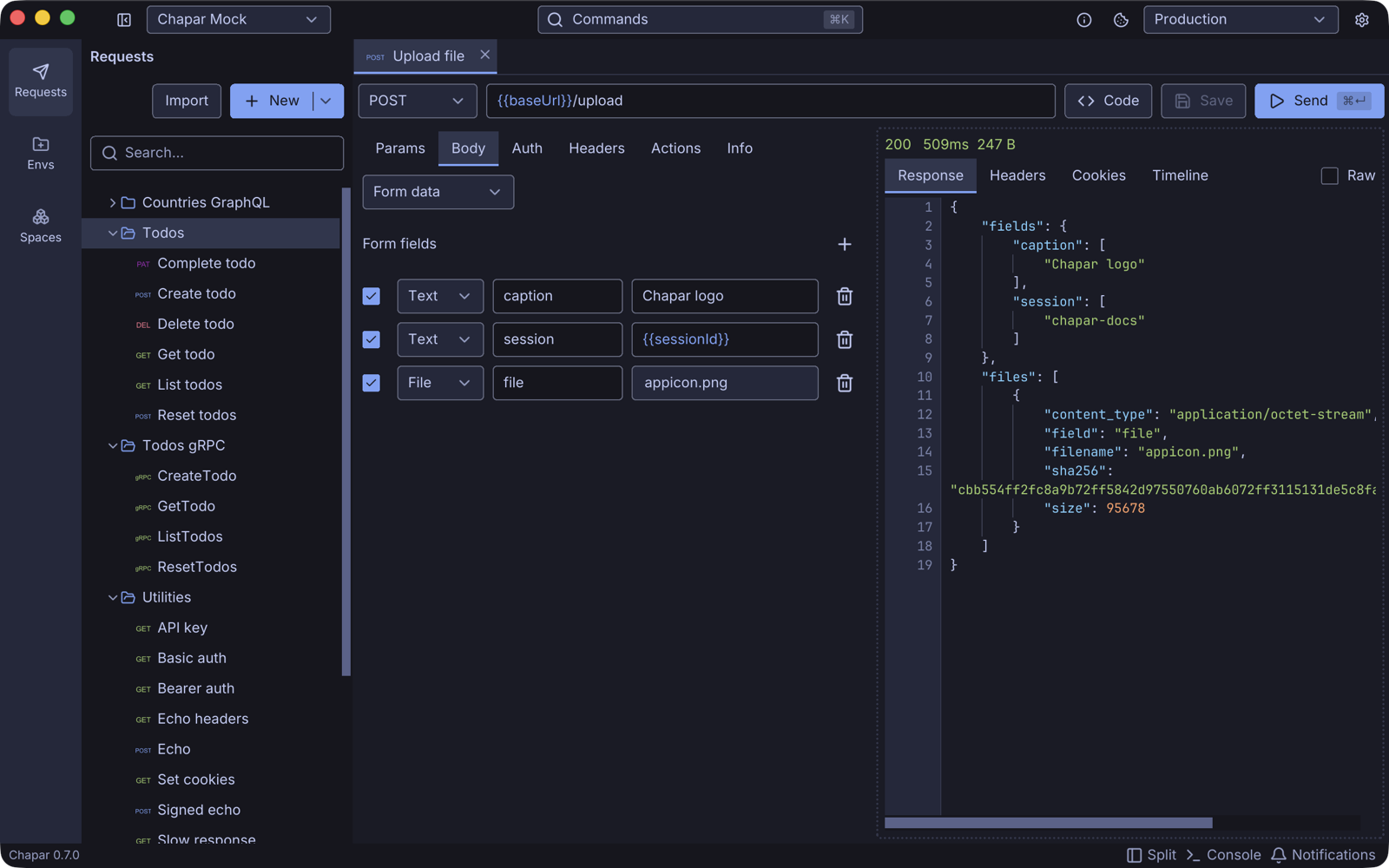
| Form data | multipart/form-data with the boundary | A table of fields. Each field is Text or File; for a file field, click the value to pick the file to upload. |
| Binary | application/octet-stream | A file picker. The file is sent as the raw body. |
| Urlencoded | application/x-www-form-urlencoded | A table of key/value pairs. |
Content-Type. Add the header yourself (for example Content-Type: application/json), or set it once on the collection.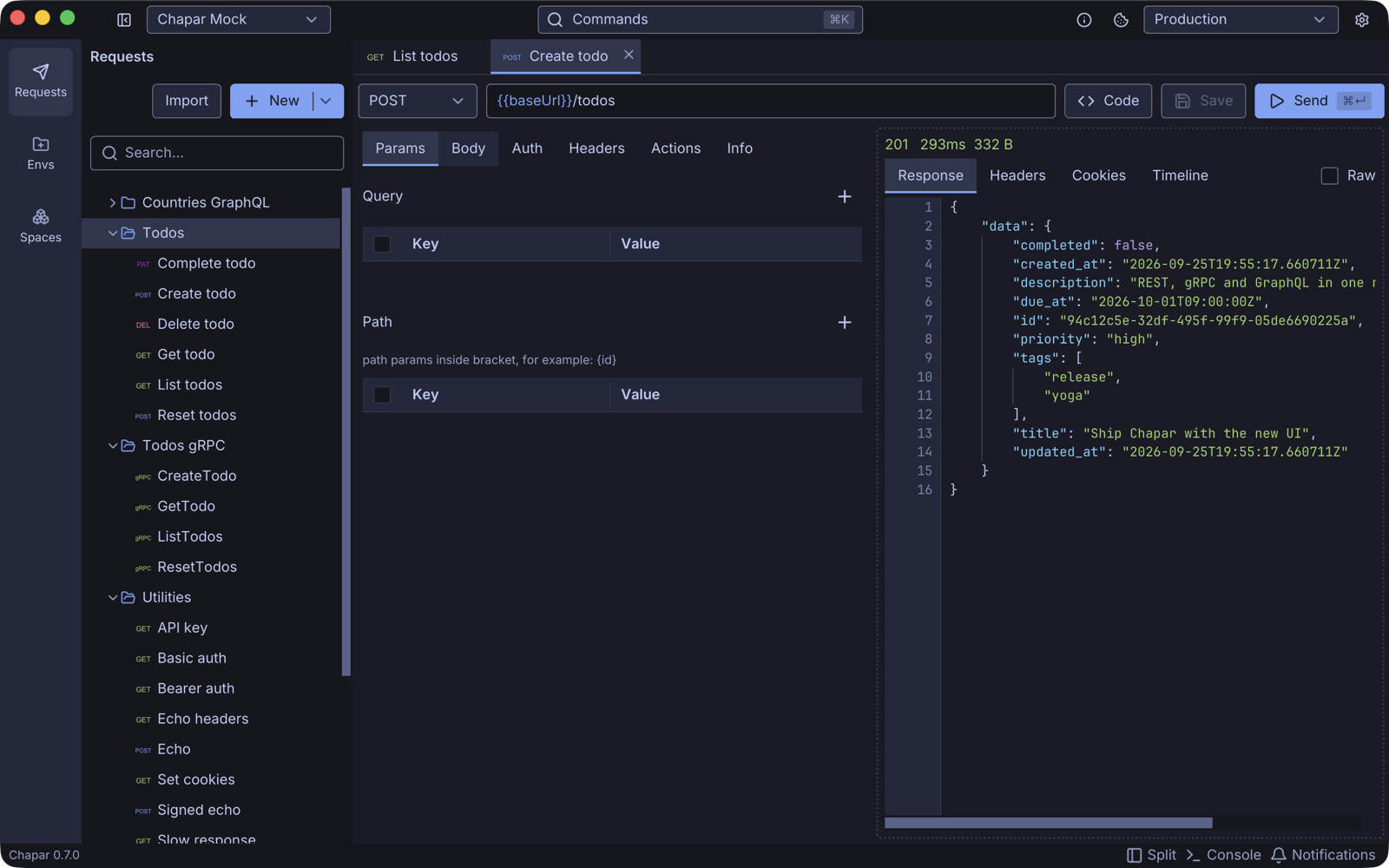
A multipart upload, sent to the mock server’s /upload endpoint, which echoes what it received:
Auth
The Auth tab adds credentials to the request:
| Type | What Chapar sends |
|---|---|
| Inherit | The auth of the request’s collection. The tab shows which type is inherited. |
| None | Nothing. |
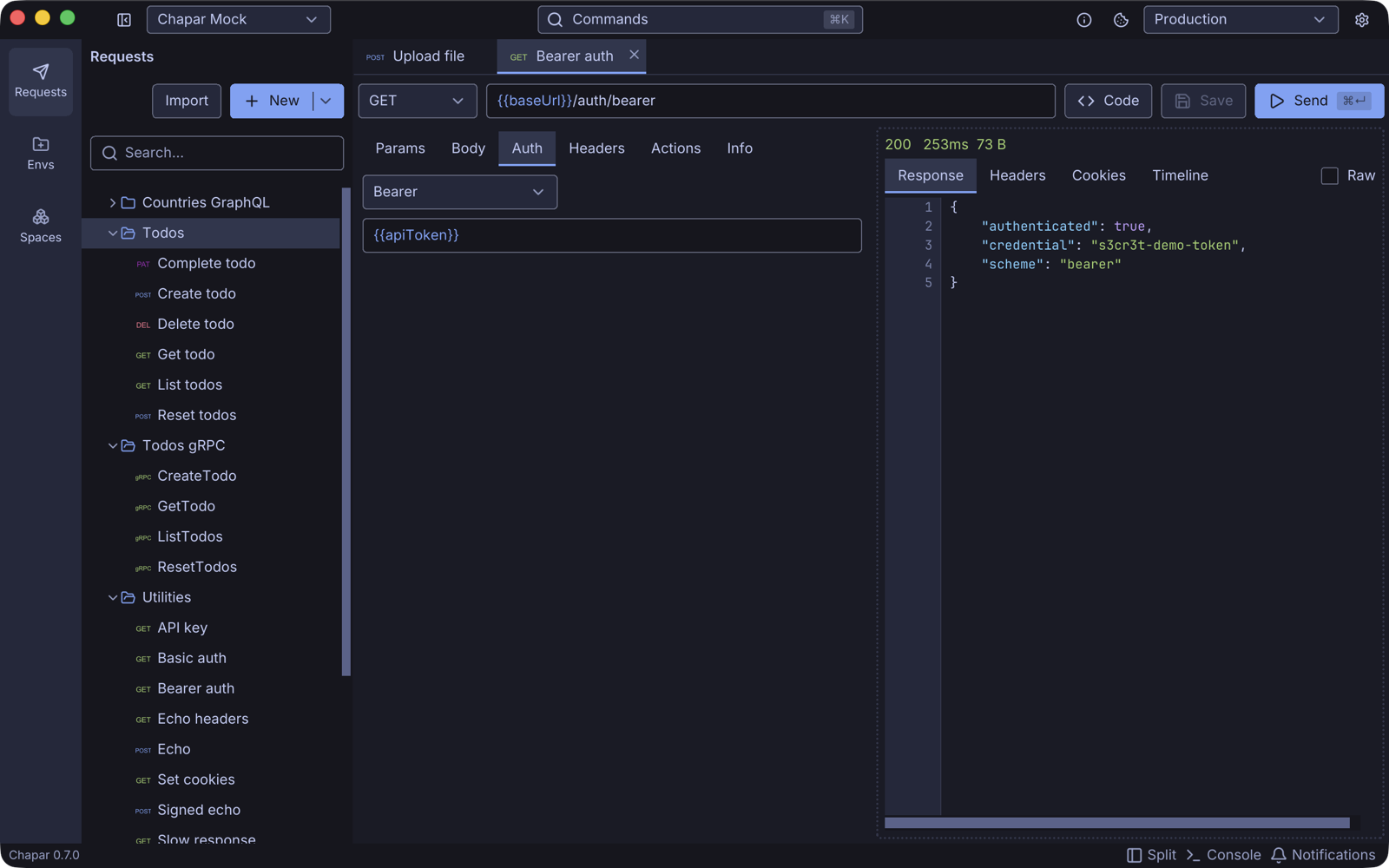
| Bearer | Authorization: Bearer <token> |
| Basic | Authorization: Basic <base64(username:password)> |
| API Key | A header with the name and value you give, for example X-API-Key: <value> |
All fields accept {{variables}}, so the token itself can live in the environment, ideally as a secret value.
Headers
The Headers tab is a table of headers. Uncheck a row to leave it out. Headers set on the request’s collection are listed under Inherited from collection; a request header with the same name replaces the inherited one.
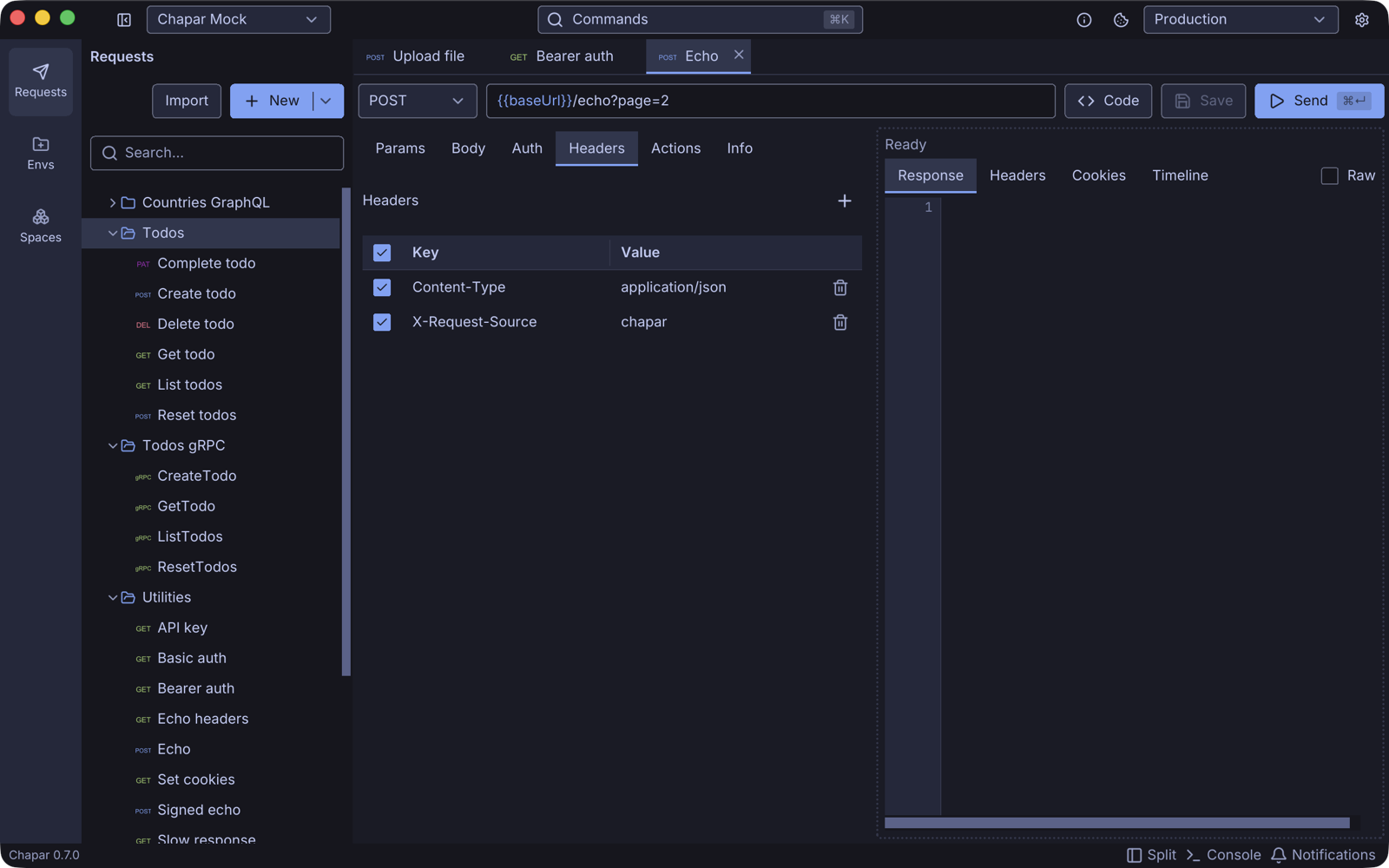
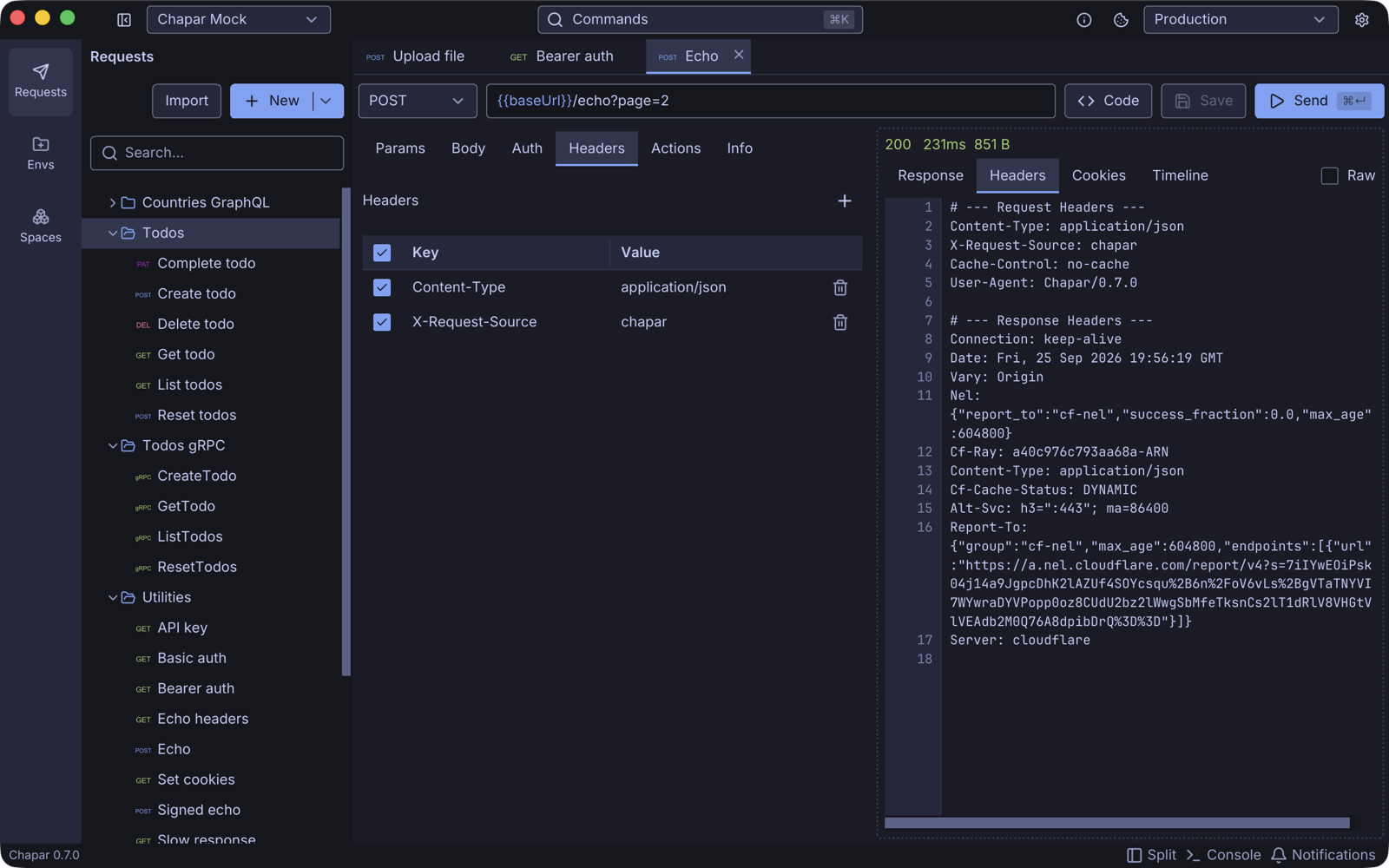
Chapar adds a few headers itself, depending on Settings › General: Cache-Control: no-cache and User-Agent: Chapar/<version>. Cookies from the environment’s cookie jar are added as a Cookie header.
Actions
The Actions tab chains requests together:
- Before: trigger another request, or run a Python pre-request script.
- After: set an environment variable from the response, or run a Python post-request script.
- Extract: copy values from the response body, headers or cookies into environment variables.
See Request Actions and Python Scripting.
Info
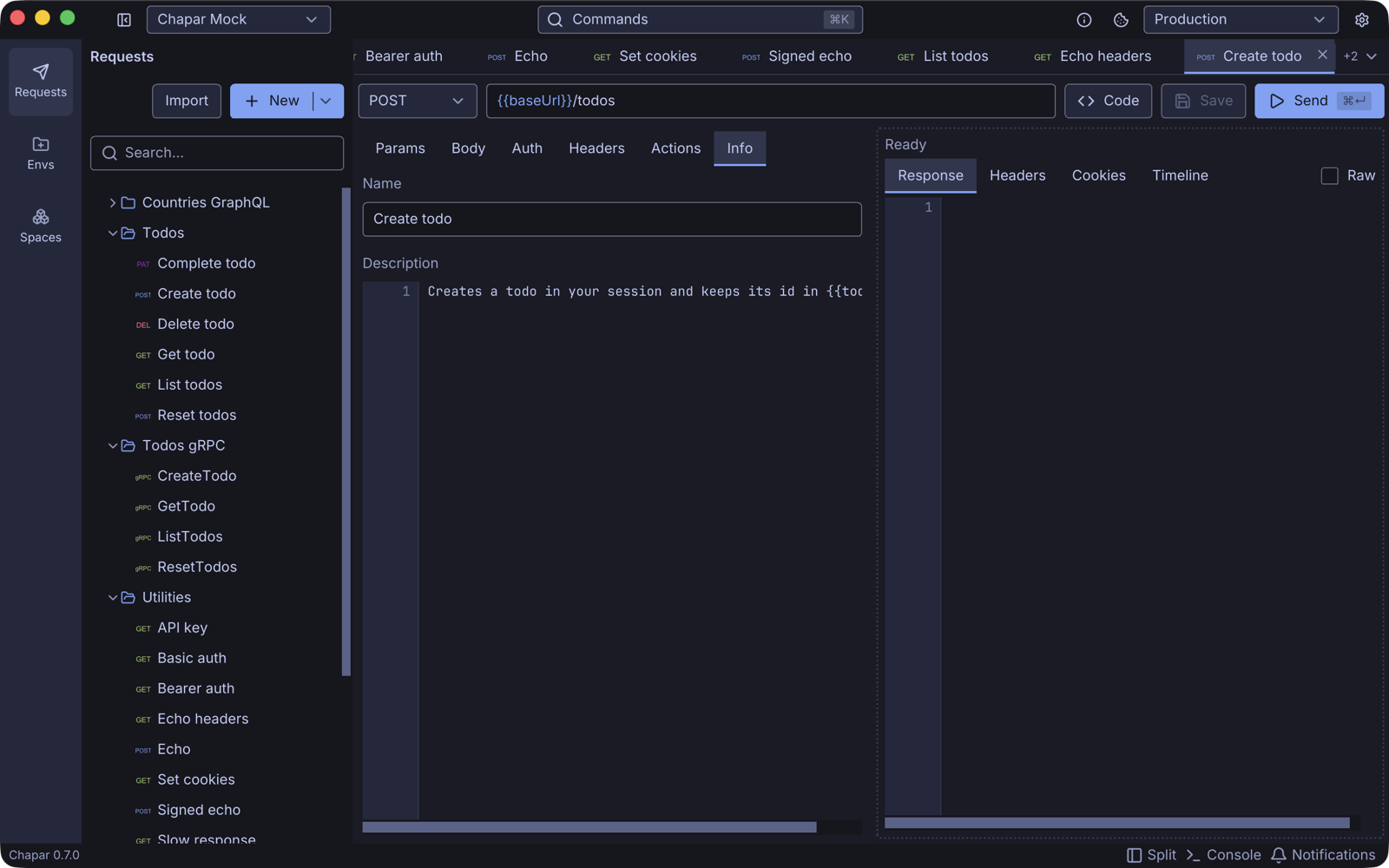
The Info tab holds the request’s Name and a Description, which is saved with the request and is a good place for notes on how to use it.
The response
The line at the top of the response pane shows the status code, the time the request took and the size of the body, colored by status class. If the request failed (for example the server was unreachable), the pane shows the error instead. If a post-request action failed, the response is still shown, with the error in a line above the response tabs.
| Tab | Shows |
|---|---|
| Response | The body. JSON, XML and HTML are formatted and highlighted. Check Raw to see the body exactly as received. Right-click for Copy and Save… to write it to a file. |
| Headers | The headers Chapar sent and the headers the server returned. |
| Cookies | The cookies the response set (new, updated, deleted or rejected, with the reason) and the cookies sent from the jar. See Cookies. |
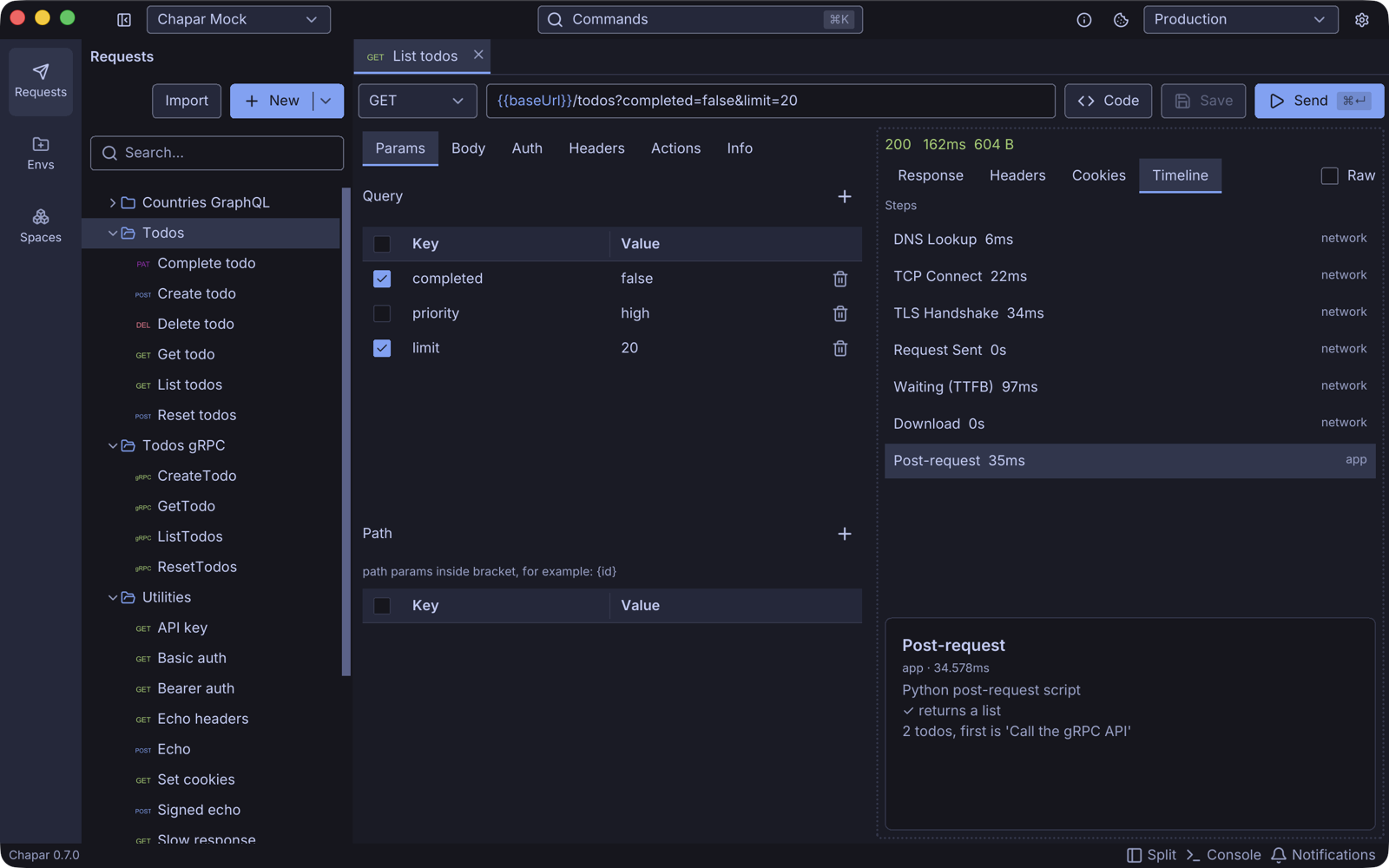
| Timeline | Every step of the request with its duration: pre-request actions, DNS lookup, TCP connect, TLS handshake, request sent, waiting for the first byte (TTFB), download and post-request actions. Click a step for its details, including the output and test results of scripts. |
Very large bodies are shown without syntax colors, with a Highlight anyway button. The limit is set in Settings › Editor › Syntax highlighting limit.
Generate code
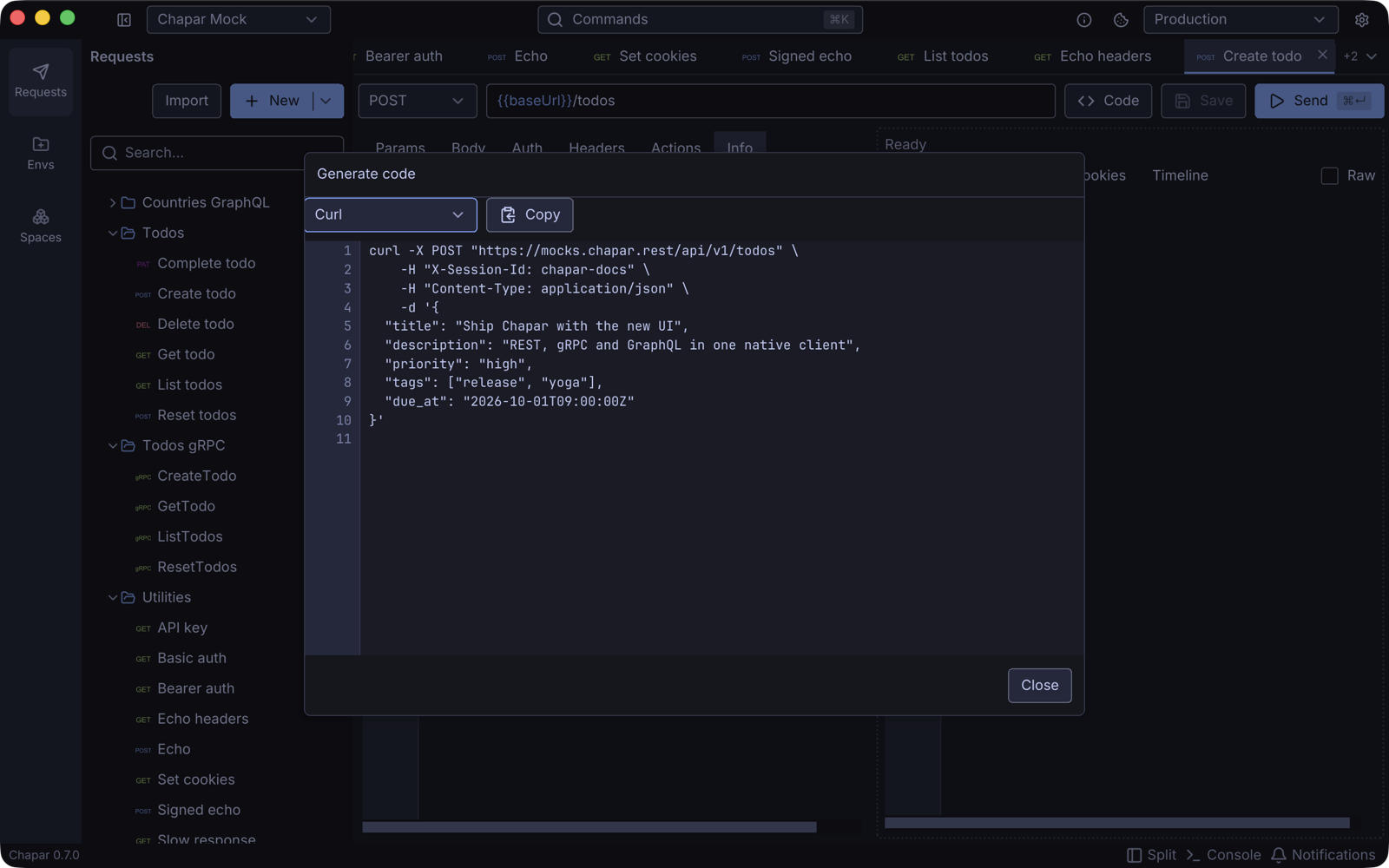
Click Code to see the request as a snippet in cURL, Python, Go, JavaScript (Axios or Node fetch), Java (OkHttp), Ruby (Net::HTTP) or .NET. Variables are filled in with the values of the active environment. Click Copy to put the snippet on the clipboard.
Settings that apply to HTTP requests
These are set for the whole app in Settings › General:
| Setting | Default | Effect |
|---|---|---|
| HTTP version | HTTP/1.1 | HTTP/1.1 or HTTP/2. |
| Request timeout (sec) | 30 | How long to wait for a response. 0 waits forever. |
| Response size (MB) | 10 | The largest body Chapar reads. 0 means no limit. |
| Follow redirects | On | Follow 3xx responses. Cookies set along the way are kept. |
| Validate TLS certificates | On | Turn off to call servers with self-signed certificates. |
| Send no-cache header | On | Adds Cache-Control: no-cache. |
| Send Chapar agent header | On | Sends User-Agent: Chapar/<version>. |
Try it on the mock server
The mock server has an endpoint for every option on this page: /echo returns exactly what you sent, /upload accepts form data, /auth/* checks each auth type, /cookies/set sets cookies and /delay/{ms} responds slowly.