Environments
An environment is a named set of variables, such as baseUrl, token or userId. Requests refer to them as {{name}}, so the same request can run against your local server, staging or production by switching the environment.
Every space has its own environments. One environment is active at a time; it’s shown in the title bar.
The Envs page
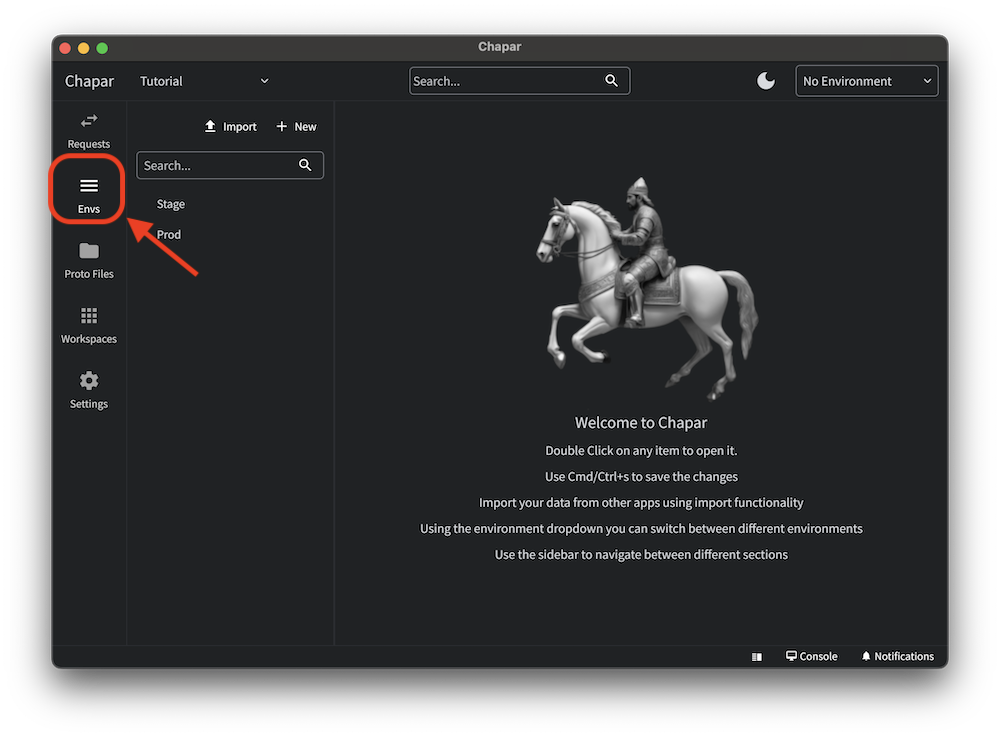
Click Envs in the navigation bar. The sidebar lists the environments of the space; click one to open it in a tab.
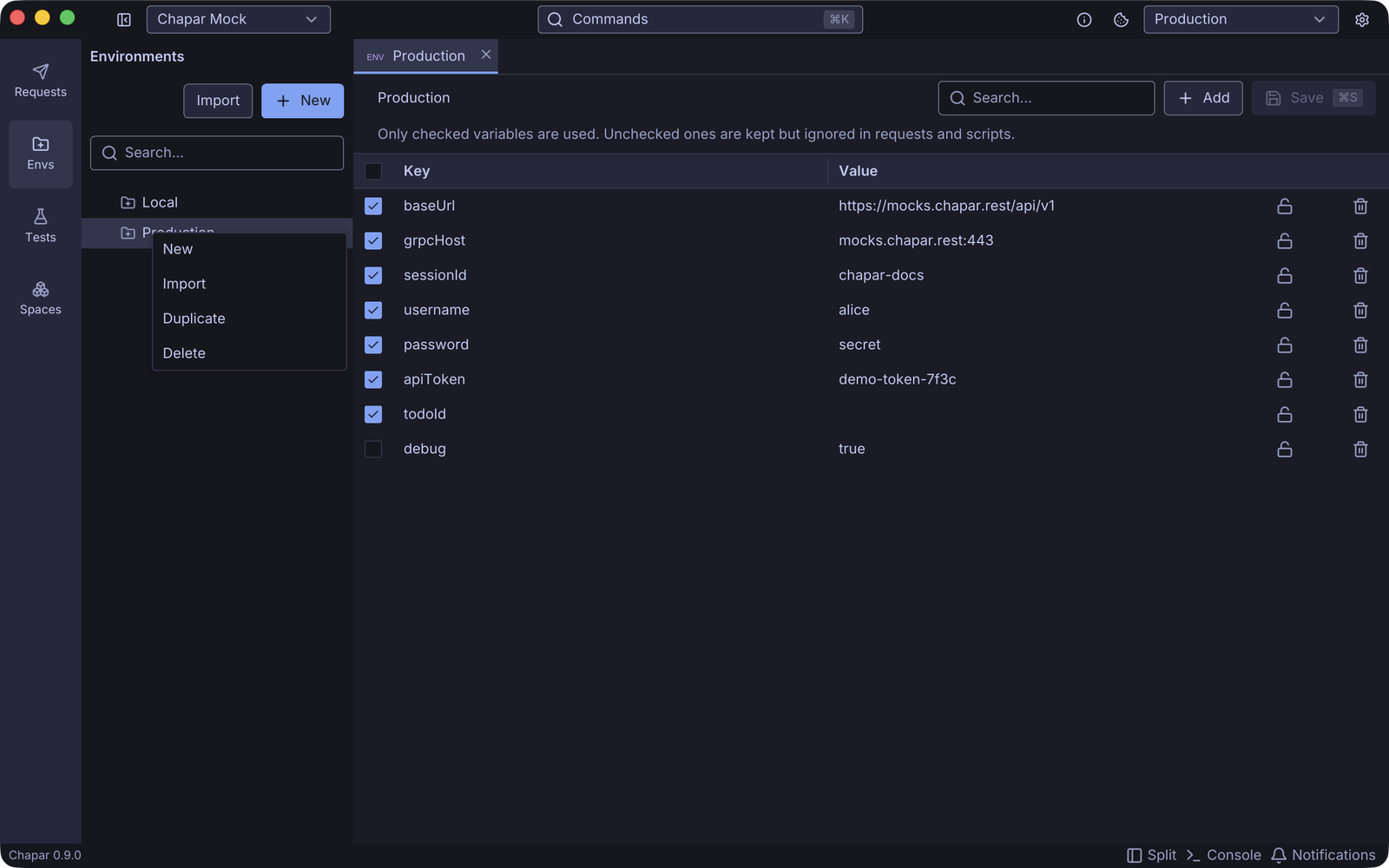
The editor shows one row per variable:
| Column | What it does |
|---|---|
| Checkbox | Turns the variable on or off. Only checked variables are used: an unchecked one is kept, but it is not replaced in requests and scripts do not see it. Setting a variable from a script or a request action checks it. |
| Key | The variable’s name, used as {{key}}. |
| Value | Its value. Click to edit. |
| Lock | Marks the value as secret. |
| Trash | Deletes the variable. |
Use Search to filter long lists, Add to add a variable and Save (⌘S) to write the changes. Click the name at the top of the tab to rename the environment.
Create, import, duplicate and delete
- New creates an environment called New Environment and opens it.
- Import reads a Postman environment (
.json). - Right-click an environment in the sidebar for Duplicate and Delete.
Switch the active environment
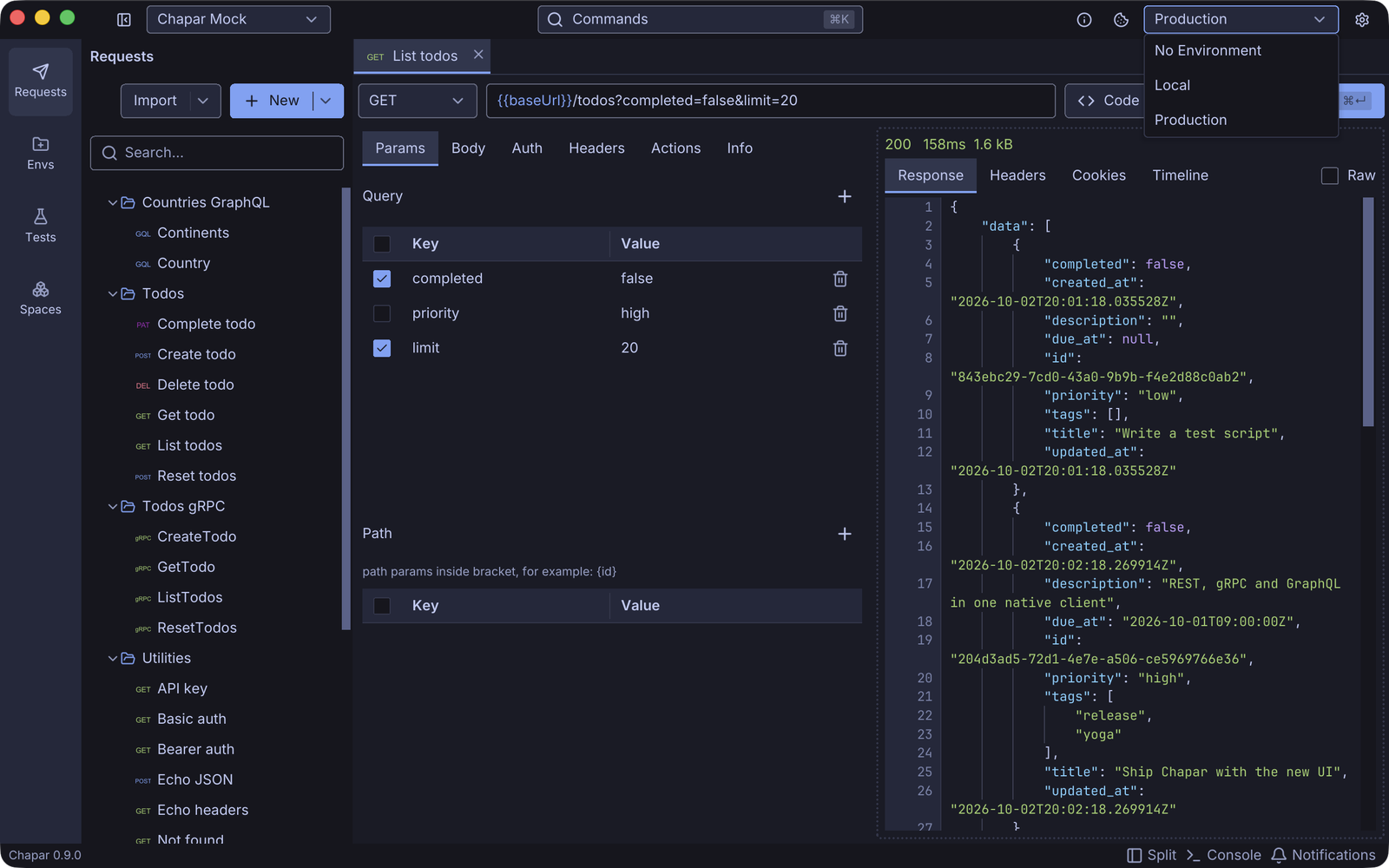
Pick an environment in the selector in the title bar. No Environment turns variables off: {{name}} placeholders are then sent as they are.
The active environment is also where request actions and scripts write the values they extract, and it selects the cookie jar that requests use.
Use variables in requests
Write {{name}} anywhere in a request: the URL, query and path params, headers, the body, form fields, auth fields, gRPC metadata and message, GraphQL queries and scripts. Chapar replaces them when you send the request.
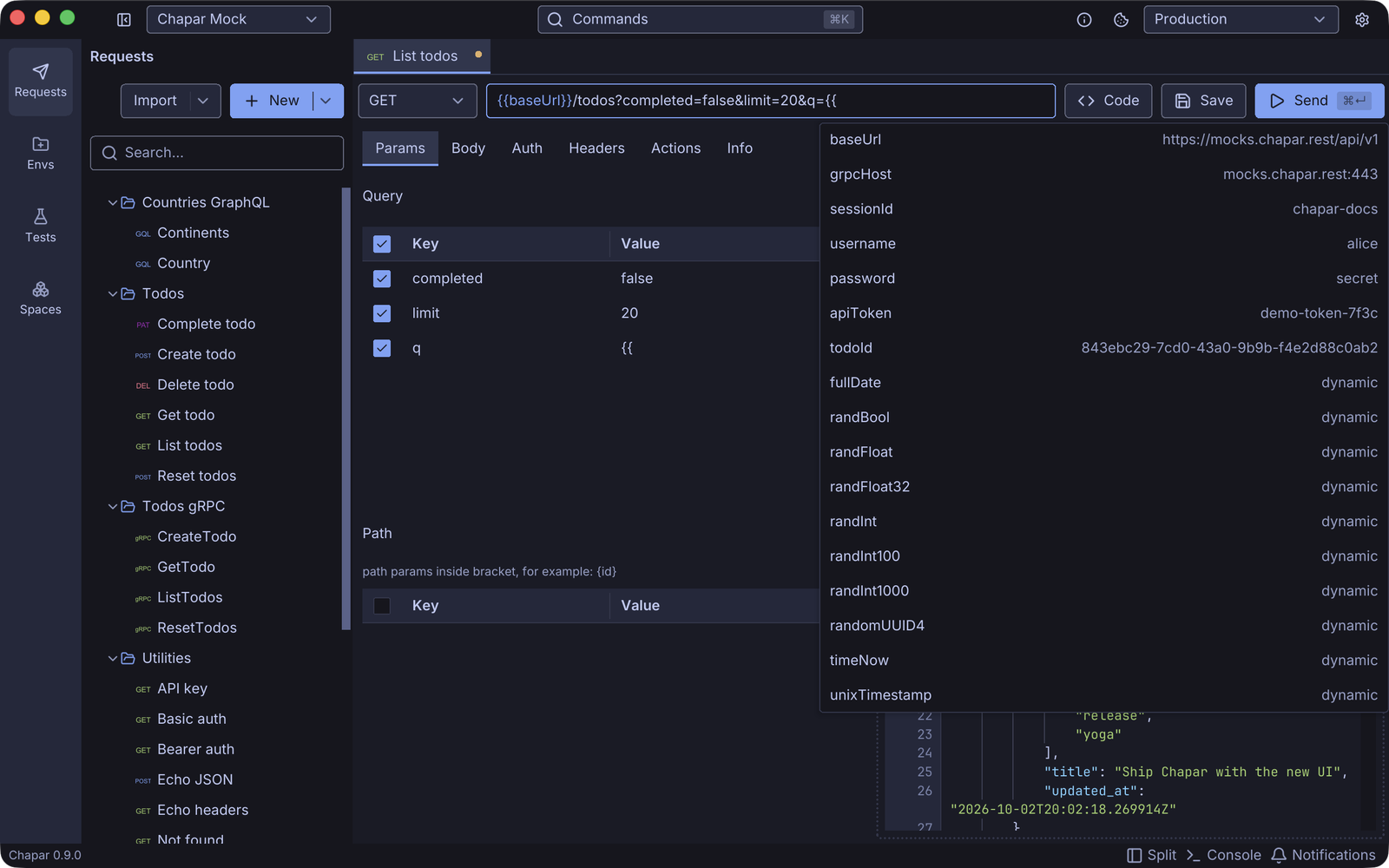
As you type {{, Chapar suggests the variables of the active environment, the built-in functions and the values the request extracts from its response:
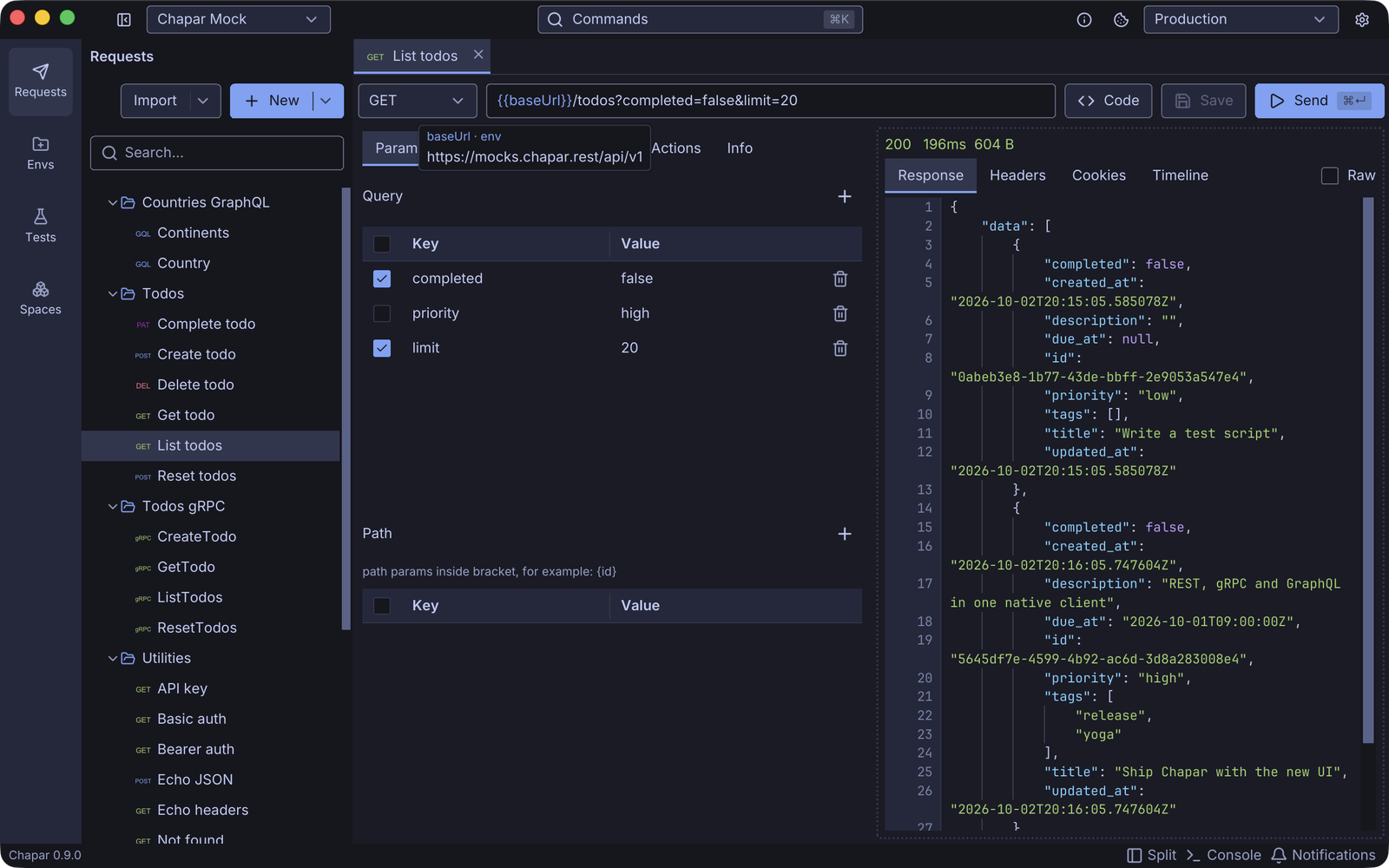
Variables are colored as you type: a known variable in the info color, an unknown one (a typo, or a variable that exists only in another environment) in the warning color. Hover a variable to see where it comes from and its current value:
Secret values
Values such as tokens and passwords shouldn’t sit in plain text on disk or in git. Click the lock on a row to mark its value secret:
- The value is encrypted on disk with AES-256-GCM, so the environment file is safe to sync or commit.
- The value is masked in the editor, and variable hovers never show it.
- Requests still use the real value when you send them.
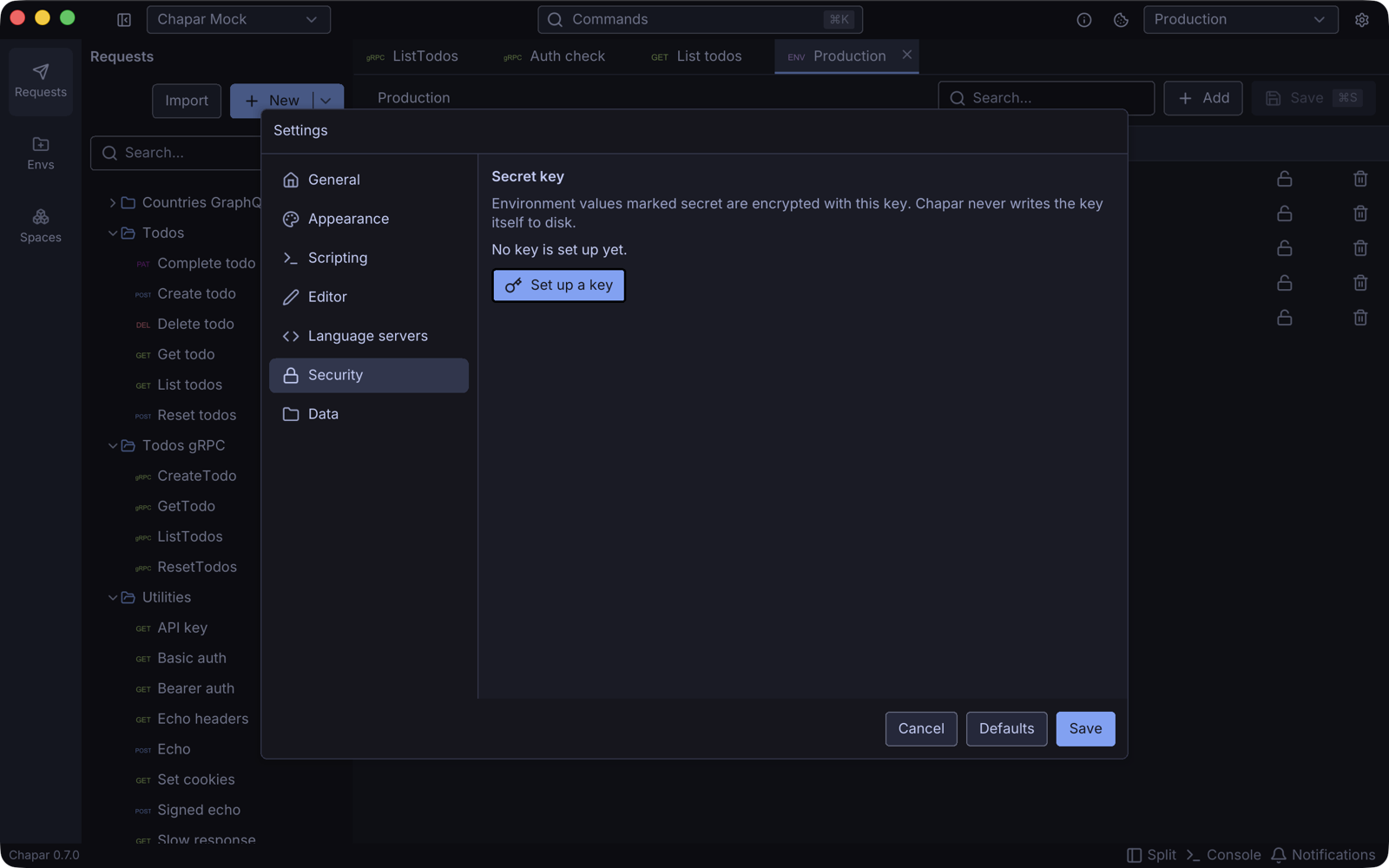
The first time you mark a value secret, Chapar asks you to set up a secret key. It keeps the key in your OS secret store: the macOS Keychain, the Windows Credential Manager, or the Secret Service on Linux. Where no secret store is available, Chapar asks for a passphrase once per session instead.
Manage the key in Settings › Security: show it, replace it with a key you paste (to read secrets created on another machine), or remove it from this machine.
Values you don’t mark secret stay in plain text.
Environment files
Environments are YAML files in the envs folder of the space:
apiVersion: v1
kind: Environment
metadata:
  id: 2c8e4bd0-5a8e-5b54-9d42-1f0d6c0d7a11
  name: Production
spec:
  values:
    - id: 6a0a5bd4-3c37-5d2c-8a3b-1b2fd3c1e0b2
      enable: true
      key: baseUrl
      value: https://mocks.chapar.rest/api/v1