Test Cases
Test cases live on the Tests page, next to Envs in the navigation bar. They open in the same tab strip as requests.
Create a test case
- Open Tests and click New, or run New test case from the command palette.
- Rename it in the title row.
- Click Add step and pick a request in the step’s request selector.
- Add the checks you need (see below), then click Run or press ⌘+Enter (Ctrl+Enter on Windows and Linux).
Import on the Tests page adds a test case file, for example one written by hand or copied from another workspace.
The editor has four tabs: Steps, Variables, Settings and YAML. Results stream into the pane on the right.
Steps
Steps are grouped in three sections, picked with the switch at the top of the Steps tab:
| Section | Runs | Use it for |
|---|---|---|
| Setup | First. If a setup step fails, the steps are skipped and teardown runs. | Logging in, resetting or creating data. |
| Steps | In order, after setup. | What the case tests. |
| Teardown | Last, always, even after a failure or when you click Stop. | Cleaning up what the steps created. |
Each step is a card. The header shows the last run’s status, the step’s name, the request it sends, Run (this step only, with setup and teardown) and a ⋯ menu to move the step up or down, duplicate, disable or delete it. A disabled step is reported as skipped and does not stop the run.
Click the arrow on the left of a card to open it:
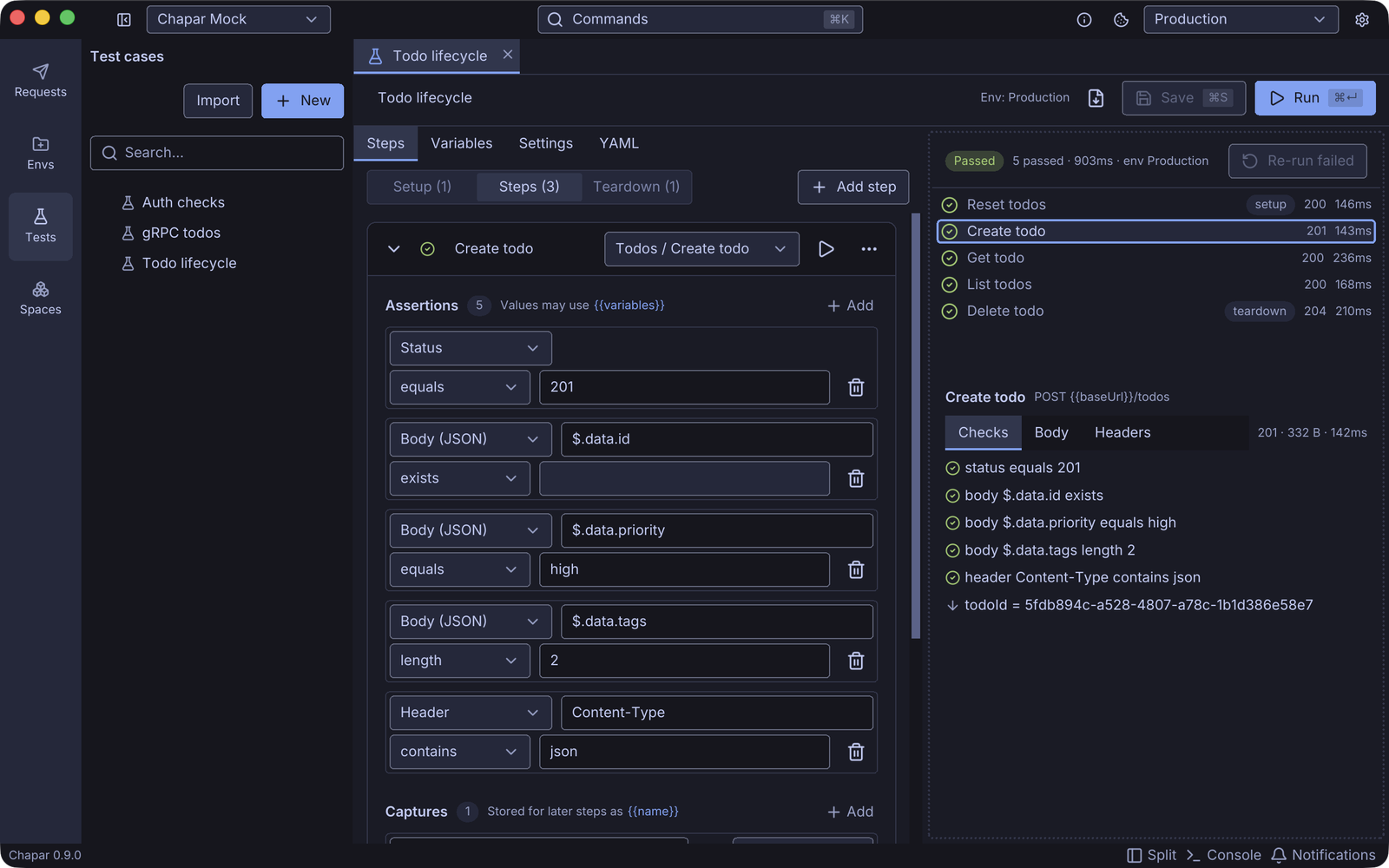
- Assertions: what the response must look like. Pick what to check (status, a header, a JSON path in the body and so on), how to compare it and the expected value. A step with no assertions passes on any response; only a failed send makes it an error.
- Captures: values to keep for later steps, such as
$.data.idfrom the body stored astodoId. Later steps use it as{{todoId}}. A capture that finds nothing fails the step. - Execution: the step’s ID, its timeout, retries and the interval between them, and Continue on failure. With retries, Chapar sends the request again until its assertions pass or the attempts run out, which is useful for jobs that finish in the background.
- Request overrides: variables, headers, query parameters or a body for this step only. The saved request does not change.
Assertion values are typed as text: true, false, null and numbers keep their type, [200, 201] is a list, and quotes force a string ("201"). Values complete and highlight {{variables}}: the environment’s, the case’s own and what earlier steps capture. See Assertions and Captures for every target and operator.
Variables
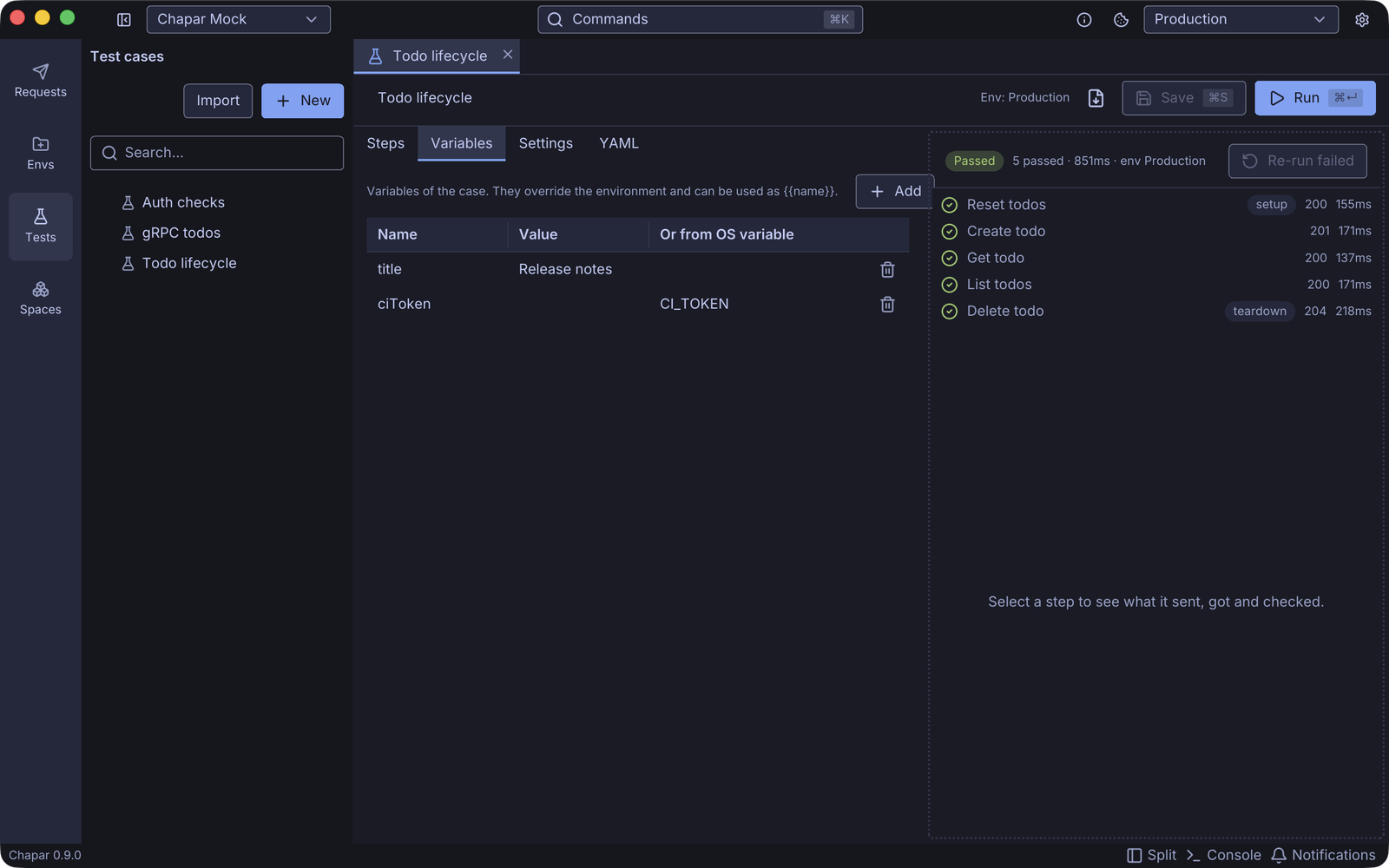
Variables of the case override the environment’s values for the whole run. A value can be fixed text, which may use other {{variables}}, or come from an OS environment variable, for a token you don’t want in the file.
Settings
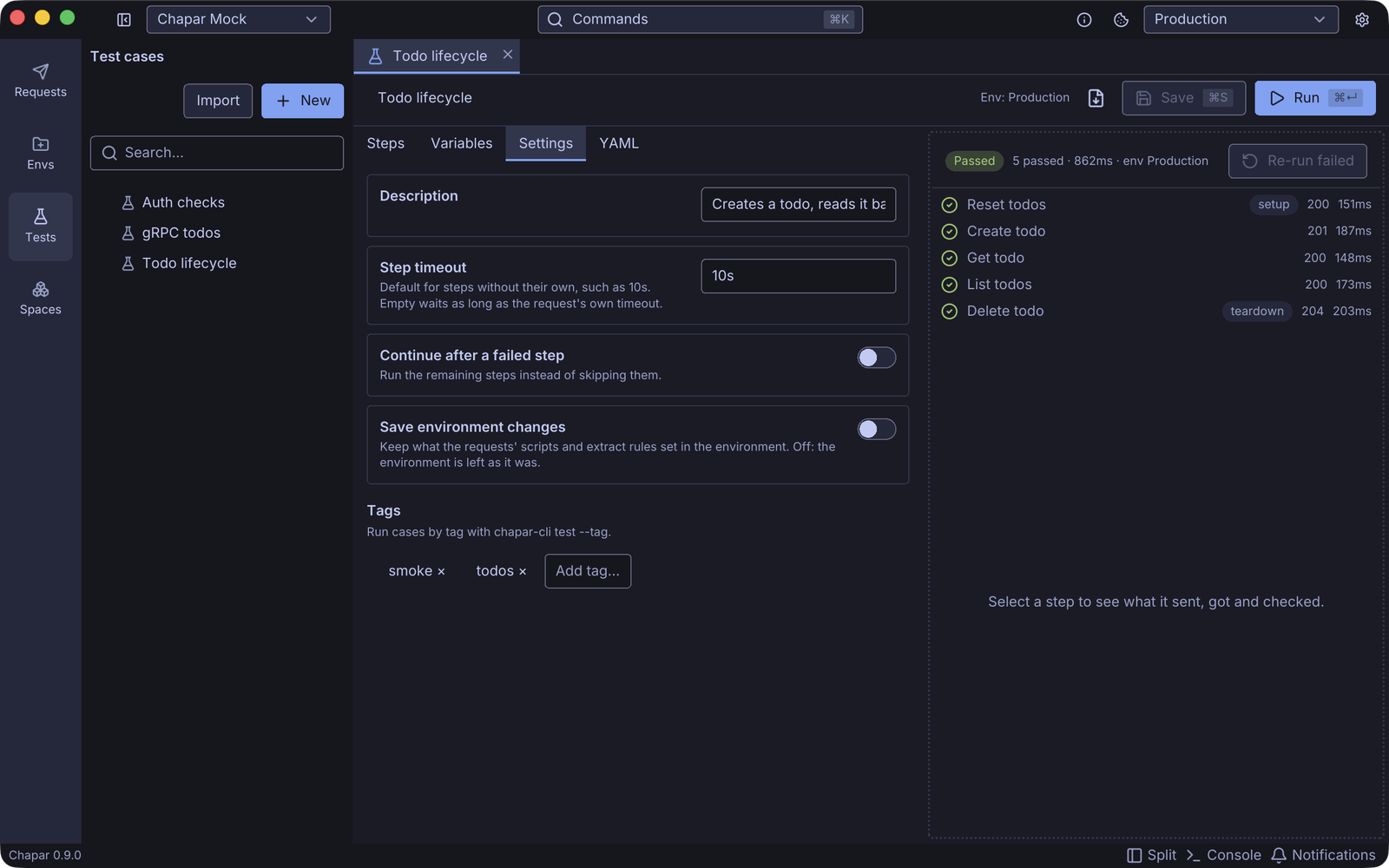
| Setting | What it does |
|---|---|
| Description | A note shown in the file and in reports. |
| Step timeout | The default for steps without their own, such as 10s. Empty waits as long as the request’s own timeout. |
| Continue after a failed step | Run the remaining steps instead of skipping them. |
| Save environment changes | Keep what the requests’ scripts and extract rules set in the environment. Off, the environment is left as it was. Captures and case variables are never saved. |
| Tags | Labels such as smoke, to run a group of cases with chapar-cli test --tag smoke. |
YAML
The YAML tab shows the whole case as text, in the same format as the file in your workspace. Edit it to make many changes at once; leaving the tab applies them. If the text does not parse, the tab stays open and shows the error.
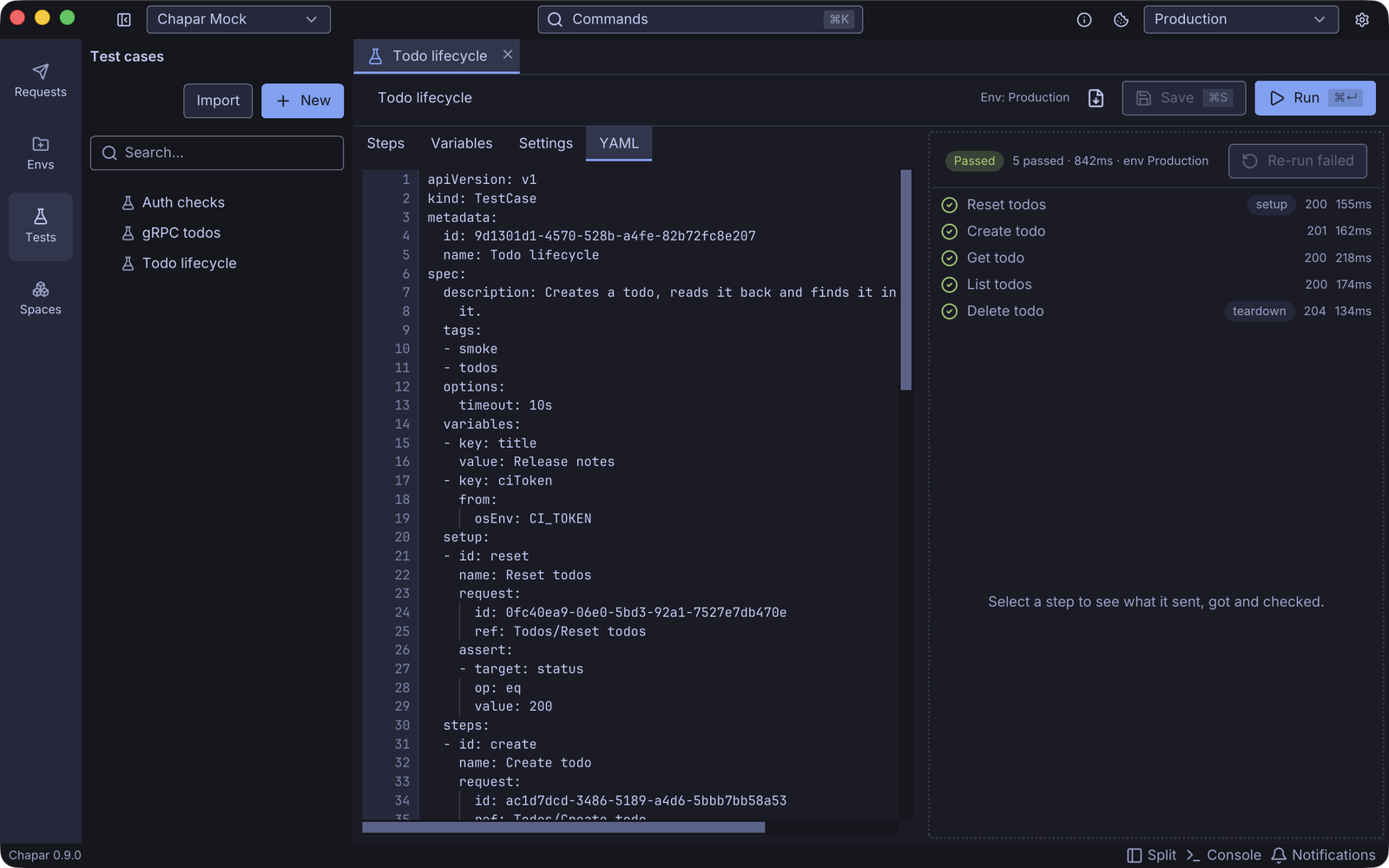
Test cases are saved in the workspace’s testcases folder, one .yaml file each, so they can be reviewed and versioned with the rest of the workspace. Steps point at requests by ID, so renaming a request does not break a test.
Run and read the results
Run uses the active environment, shown next to it in the title row. Problems that would make the case fail to run, such as an assertion without a JSON path or a step without a request, are listed above the editor, and Run refuses until they are fixed.
The results pane shows a summary (passed, failed or error, the number of steps and the time), then one row per step with its section, status code and time. Click a step to see what it sent, got and checked:
| Tab | Shows |
|---|---|
| Checks | Every assertion with the actual value, and every capture. Results of chapar.test() in the request’s own scripts are listed here too. |
| Body | The response body, pretty-printed. |
| Headers | The response headers. |
A failed assertion shows what it got and what it wanted:
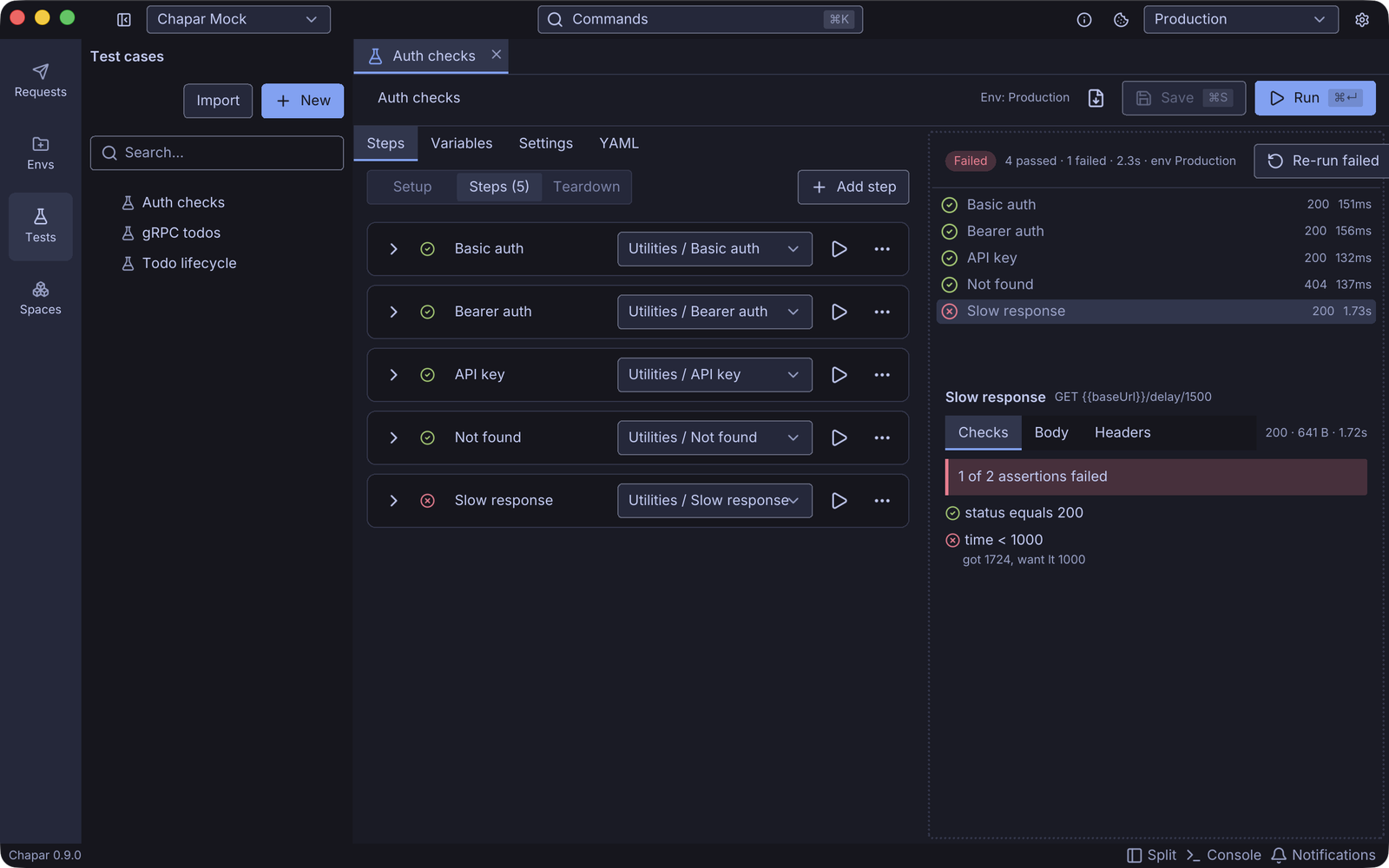
Re-run failed runs only the steps that did not pass, with setup and teardown. Step cards also show the last run’s status, so you can see which one failed while you fix it.
A step is failed when an assertion or capture fails, and error when it could not run at all: the request was not found, the connection failed, the step timed out, or a post-request action raised. The run is an error if any step is, and failed if any step failed.
How a run treats your data
- A run starts from a copy of the active environment. Captures, case variables and what the requests change stay in that copy, unless Save environment changes is on.
- Every run has an empty cookie jar of its own, so it neither uses nor changes the jar you see in the app.
- Request scripts run as usual when scripting is turned on in Settings.
Export for the command line
The export button in the title row writes the case into one file, together with the requests its steps send, the collections they belong to (headers and auth only) and, if you pick one, an environment. Run that file anywhere with chapar-cli test, without the rest of the workspace.
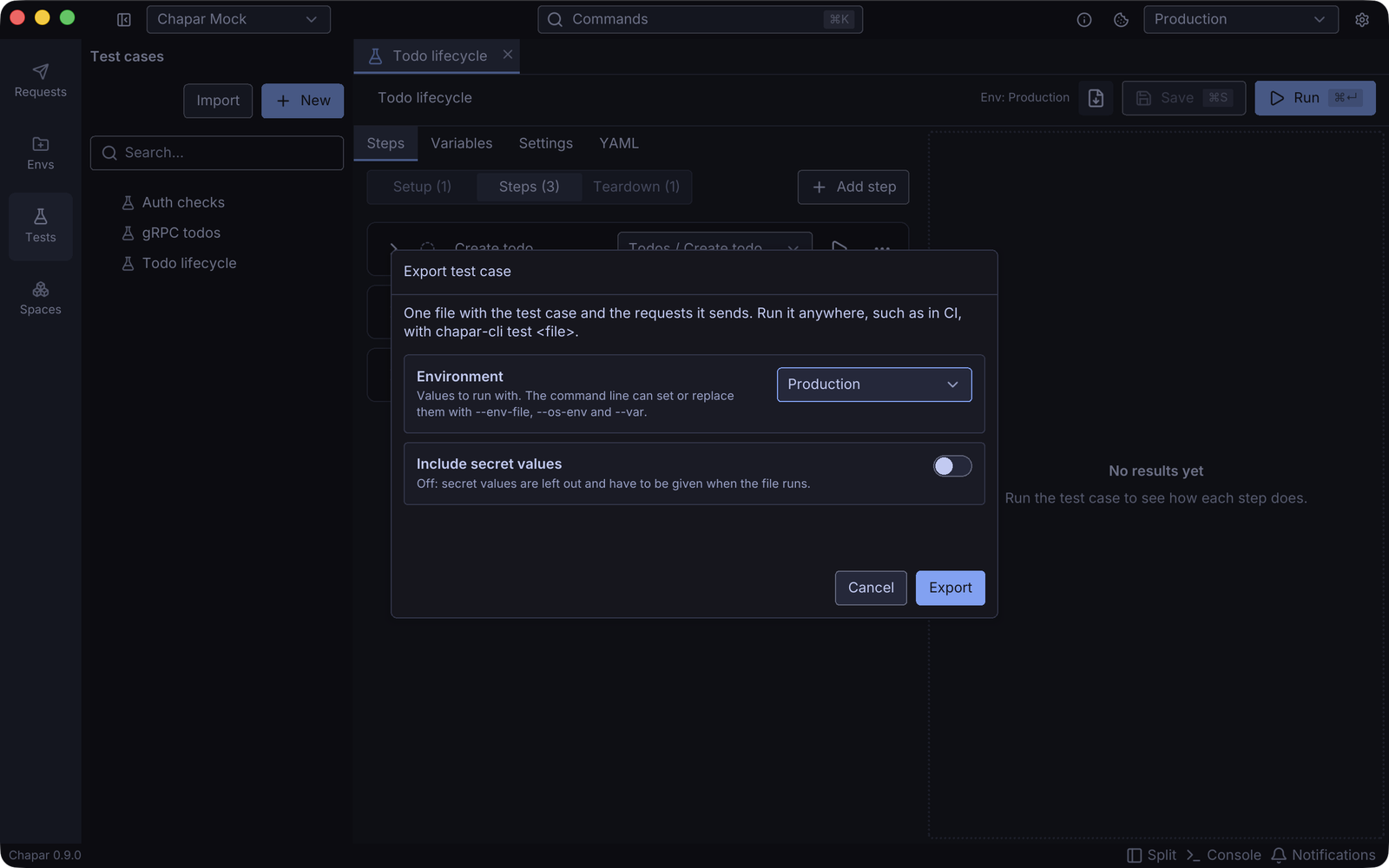
Secret values are left out unless you turn on Include secret values. The file lists the keys it left out, and chapar-cli warns about any you don’t give it at run time. gRPC steps in an exported file need a server with reflection, since proto files are not included.