Python Scripting
Chapar runs Python scripts before a request is sent and after its response arrives. Scripts work for HTTP, gRPC and GraphQL requests. Use them to:
- compute values the request needs: signatures, timestamps, hashes, tokens,
- change the request before it is sent: headers, body, URL, query params, gRPC metadata,
- skip a request when a condition isn’t met,
- save values from the response into the environment, with any logic you need,
- test the response and see the results in the timeline.
How scripts run
Scripts run in the Chapar Python executor, a small server that Chapar starts in a Docker container on your machine. For every script run, Chapar sends the script, the request, the response and the active environment to the executor, and applies what the script changed.
Send
 ├─ Before: pre-request script    may change the request, set env values or skip
 ├─ the request is sent
 ├─ After: post-request script    may test the response, set env values and log
└─ Timeline shows the output and test results- Each script runs in a fresh process with Python 3.11, so scripts share no state with each other.
- A script may run for 10 seconds; after that it is stopped and the step fails.
- Changes a pre-request script makes to the request apply to that send only. The saved request never changes.
- Environment values a script sets are written to the active environment and saved.
- Output (
printorchapar.log) and test results appear in the response Timeline. - The container is locked down: it listens on
127.0.0.1only, requires a per-container token, has a read-only file system (only/tmpis writable), runs as a non-root user and is limited to 512 MB of memory and one CPU.
Setup
Scripting needs Docker (Docker Desktop, OrbStack, Colima or any Docker engine) running on your machine.
- Open Settings (⌘,) › Scripting.
- Turn on Enable.
- Keep Language on Python and Use Docker on.
- Click Save.
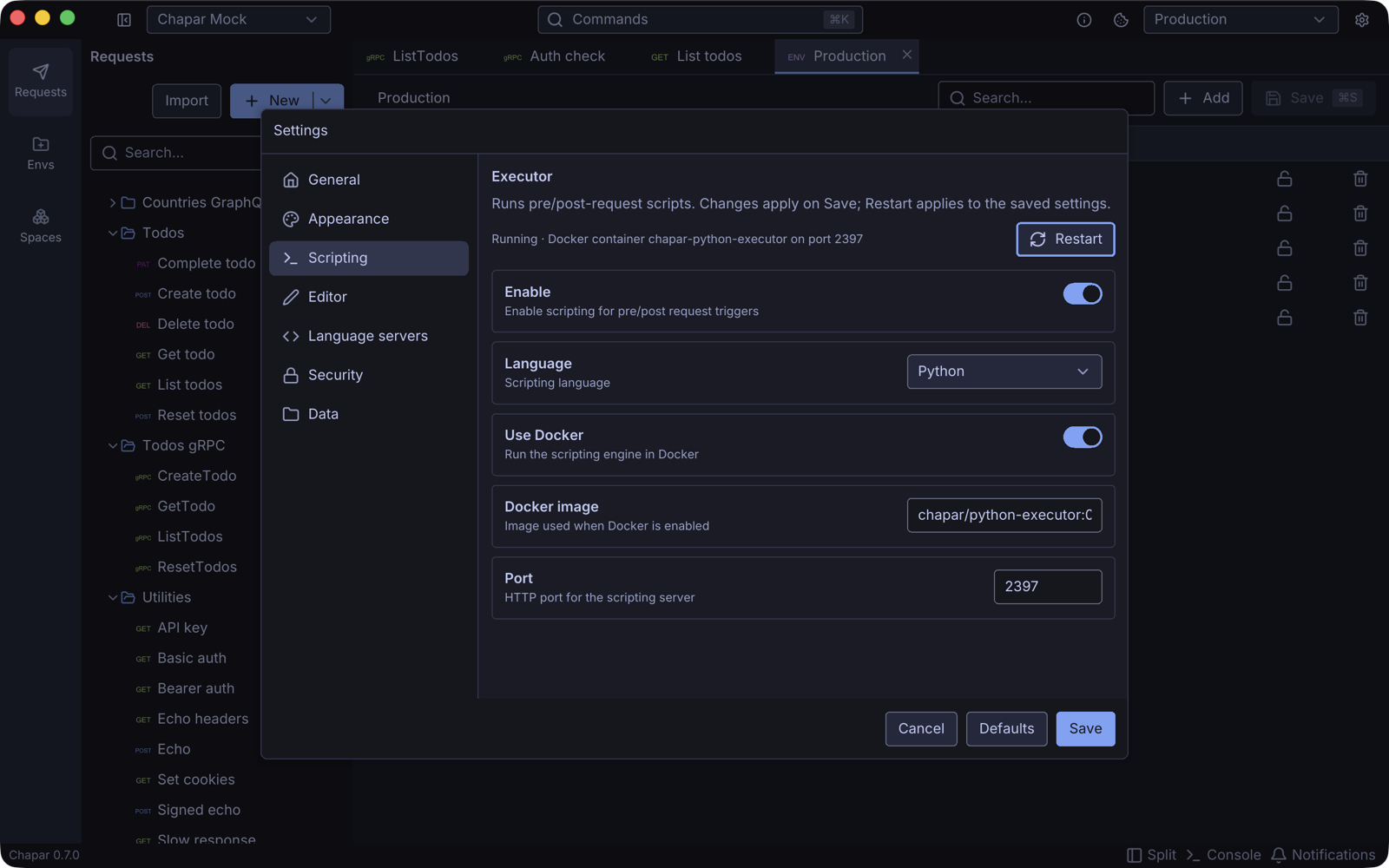
Chapar pulls the chapar/python-executor image the first time, starts the chapar-python-executor container, and shows the executor’s status at the top of the page, for example Running · Docker container chapar-python-executor on port 2397. Chapar starts a fresh container each time it launches and removes it when it quits.
| Setting | Default | What it does |
|---|---|---|
| Enable | Off | Run pre and post-request scripts. |
| Language | Python | The only language for now. |
| Use Docker | On | Let Chapar run the executor in Docker. |
| Docker image | chapar/python-executor:0.3.1 | The executor image. Each Chapar release pins the version it speaks, and moves a setting still on an older chapar/python-executor image (or latest) to it. Another image, or a newer version, is kept. |
| Port | 2397 | The local port the executor listens on. Change it if the port is taken. |
Use Restart to restart the executor with the saved settings, for example after starting Docker.
Without Docker
If you can’t use Docker, run the executor yourself and turn Use Docker off. Chapar then connects to the executor on localhost at the configured port:
git clone https://github.com/chapar-rest/python-executor.git
cd python-executor
pip install -r requirements.txt
python main.py        # serves on 127.0.0.1:2397
The executor runs any code it is sent, so keep it bound to 127.0.0.1.
Write your first script
- Open a request and go to Actions.
- Choose Before for a pre-request script, or After for a post-request script.
- Pick Python in the selector and write the script.
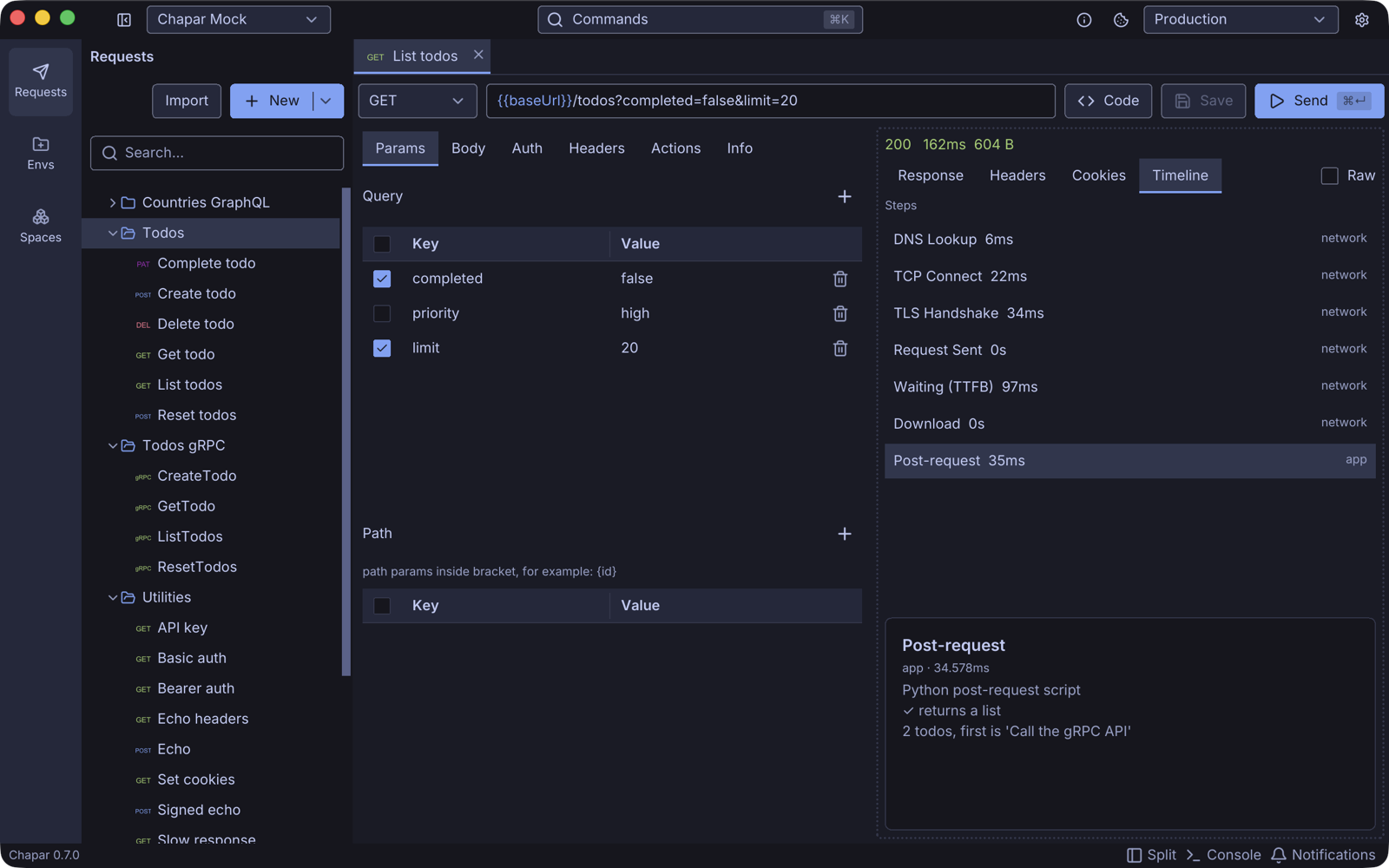
- Send the request, then open Timeline in the response pane and click the Pre-request or Post-request step to see the output and test results.
A post-request script that tests the response and saves an id for the next request:
todos = response.json()["data"]

@chapar.test("returns a list")
def _():
    assert response.status_code == 200
    assert isinstance(todos, list)

if todos:
    chapar.env.set("todoId", todos[0]["id"])
    chapar.log(f"{len(todos)} todos, first is {todos[0]['title']!r}")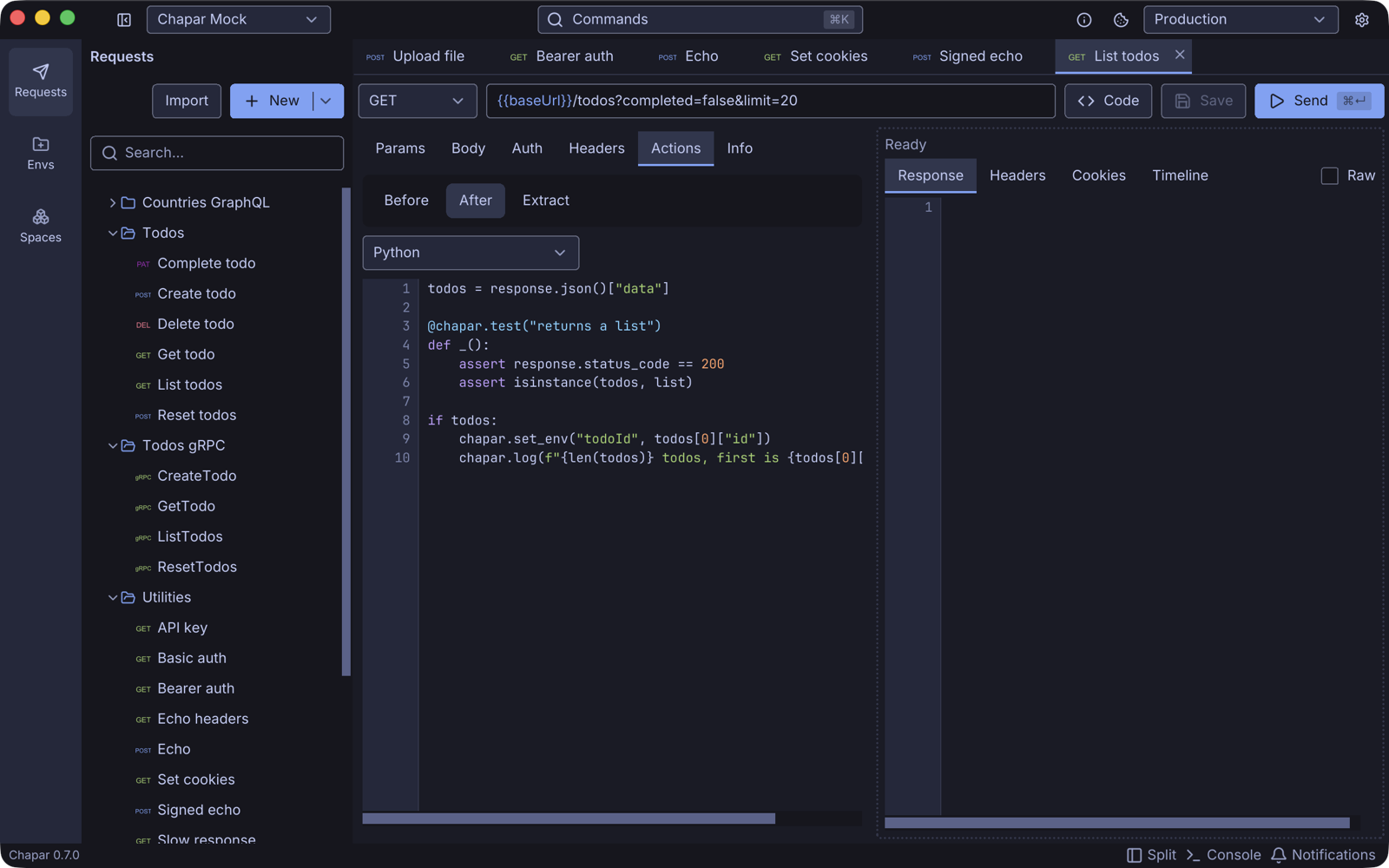
The results, in the Post-request step of the timeline:
A pre-request script that signs the body and adds the signature as a header:
import hashlib, hmac, time

key = chapar.env.get("apiToken", "").encode()
if not key:
    chapar.skip("set apiToken in the environment first")

body = request.resolved.body.encode()      # the body with {{variables}} filled in
request.headers["X-Timestamp"] = str(int(time.time()))
request.headers["X-Signature"] = hmac.new(key, body, hashlib.sha256).hexdigest()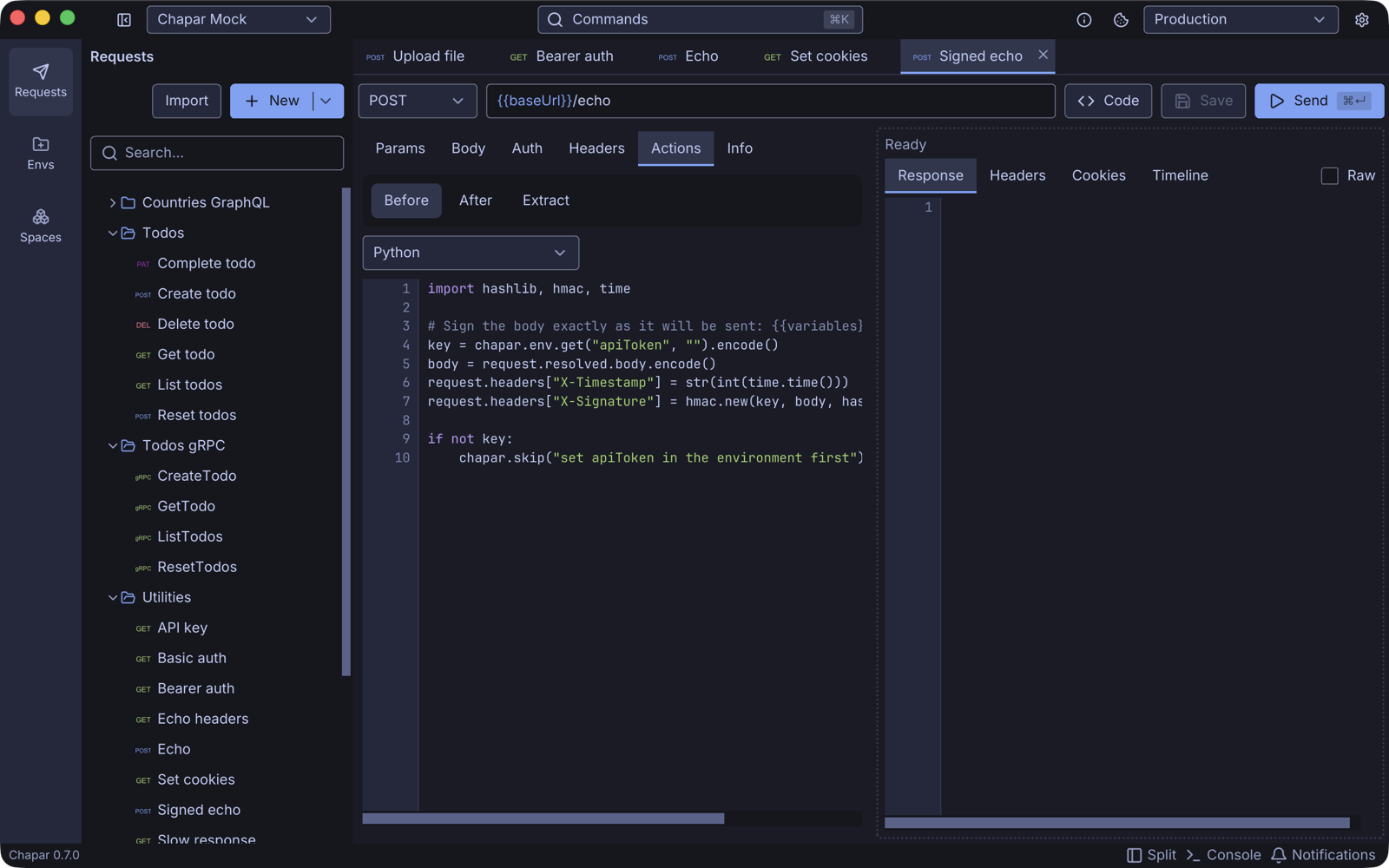
Editor support
The script editor has Python highlighting, and, when the Python language server (pyright) is installed, completion, hover documentation and error checking that know the chapar, request and response objects. In a pre-request script the editor flags any use of response, which only exists after the request is sent. If pyright is missing, Chapar offers to install it; see Settings › Language servers. {{variables}} are highlighted and completed in scripts too.
When a script fails
If a script raises an exception, the step fails and the timeline shows the error with its line number, for example line 4: KeyError: 'data'.
- A failing pre-request script stops the request: it is not sent.
- A failing post-request script doesn’t hide the response: the response is shown, with the error in a line above the response tabs.
- A failing test doesn’t stop the script. The step reports how many tests failed.
Next
- API Reference: everything
request,responseandchaparoffer. - Examples: logins and tokens, signatures, tests, gRPC and GraphQL scripts.