Running API Tests in CI with chapar-cli
You built a test case in Chapar and it passes on your machine. This post shows how to run that same test on every push: commit the workspace, install chapar-cli in CI, pass secrets in safely, and get a report your CI can display.
Everything here runs against the free mock server, so you can follow along without your own API.
1. Put the workspace in your repository
Each space in Chapar is a folder of YAML files: requests, collections, environments and test cases. Spaces live in the workspace folder (~/.config/chapar by default, see Settings › Data). Copy the space you test with into your repository, or point Workspace path at a folder in the repository so the app edits it in place:
my-service/
├── api-tests/          # a Chapar space
│   ├── _workspace.yaml
│   ├── collections/
│   ├── requests/
│   ├── envs/
│   ├── testcases/
│   │   └── Todo lifecycle.yaml
│   └── .state/         # cookies, ignored by git
└── ...
The .state folder holds the cookie jar and is already git-ignored. Everything else is meant to be committed and reviewed, just like code. chapar-cli takes this folder with --workspace.
2. Write a test case
Build it in the app on the Tests page, or write it by hand. Here’s a short one that creates a todo, reads it back and deletes it:
apiVersion: v1
kind: TestCase
metadata:
  name: Todo lifecycle
spec:
  tags: [smoke]
  options:
    timeout: 10s
  setup:
    - id: reset
      request: { ref: Todos/Reset todos }
  steps:
    - id: create
      request: { ref: Todos/Create todo }
      assert:
        - { target: status, op: eq, value: 201 }
        - { target: body, path: $.data.id, op: exists }
      capture:
        - { var: todoId, from: body, path: $.data.id }
    - id: get
      request: { ref: Todos/Get todo }
      assert:
        - { target: body, path: $.data.id, op: eq, value: "{{todoId}}" }
        - { target: time, op: lt, value: 1000 }
  teardown:
    - id: delete
      request: { ref: Todos/Delete todo }
      assert:
        - { target: status, op: eq, value: 204 }
ref points at a request as Collection/Request. The app also fills in the request’s id, so renaming a request later doesn’t break the test. Teardown always runs, even when a step fails, so your test data gets cleaned up.
3. Run it locally first
Install the CLI:
curl -fsSL https://github.com/chapar-rest/chapar/releases/latest/download/install-cli.sh | sh
# or
brew install chapar-rest/chapar/chapar-cli
and run the workspace with an environment:
chapar-cli test --workspace api-tests --env StagingTodo lifecycle · env Staging
✓ Todos/Reset todos 200 147ms (setup)
✓ Create todo 201 145ms
✓ Todos/Get todo 200 162ms
✓ Todos/Delete todo 204 155ms (teardown)
passed · 4 passed · 0.61sWith no names, every test case in the workspace runs. Name cases to run only those, or pick a group with --tag smoke.
4. Keep secrets out of the repository
Don’t commit tokens. Leave them out of the environment file and let CI provide them. --os-env reads OS environment variables that start with a prefix and removes the prefix:
API_TOKEN=... chapar-cli test --workspace api-tests --env Staging --os-env API_
# {{TOKEN}} in your requests now has the value of $API_TOKEN
You can also layer values with --env-file FILE and --var key=value. They apply in that order, each overriding the one before. A test case can also declare a variable that comes from the OS environment (from: { osEnv: CI_TOKEN }), so the file itself says what it needs.
5. GitHub Actions
name: API tests
on: [push, pull_request]

jobs:
  api-tests:
    runs-on: ubuntu-latest
    steps:
      - uses: actions/checkout@v4

      - name: Install chapar-cli
        run: curl -fsSL https://github.com/chapar-rest/chapar/releases/latest/download/install-cli.sh | sh -s -- -b "$HOME/.local/bin"

      - name: Run API tests
        run: chapar-cli test --workspace api-tests --env Staging --os-env API_ --report junit=results.xml
        env:
          API_TOKEN: ${{ secrets.API_TOKEN }}

      - name: Upload results
        if: always()
        uses: actions/upload-artifact@v4
        with:
          name: api-test-results
          path: results.xml
On GitHub Actions the installer adds its folder to PATH for later steps. if: always() uploads the report even when the tests fail, which is exactly when you want it.
6. GitLab CI and others
chapar-cli is a static binary, so any image with sh, curl and tar works. On GitLab, the JUnit report shows up in the merge request:
api-tests:
  image: alpine:3.20
  before_script:
    - apk add --no-cache curl
    - curl -fsSL https://github.com/chapar-rest/chapar/releases/latest/download/install-cli.sh | sh
  script:
    - chapar-cli test --workspace api-tests --env Staging --os-env API_ --report junit=results.xml
  artifacts:
    when: always
    reports:
      junit: results.xml
Set API_TOKEN as a masked CI/CD variable in the project settings.
Pin a version when you want reproducible builds: sh -s -- -v v0.11.0.
Exit codes
CI only needs the exit code to decide pass or fail:
| Code | Meaning |
|---|---|
0 | Every test case passed. |
1 | A test case failed or had an error. |
2 | Bad flags, workspace, environment or test case files, or a report couldn’t be written. |
130 | Interrupted. Teardown still runs and reports are still written. |
Every case is checked before anything is sent, so a typo in an operator fails fast with code 2, without half a run hitting your API.
No workspace? Export a single file
If your tests live somewhere else, or you want to hand a test to another team, use the export button in the test case’s title row. It writes one file with the case, the requests it sends, their collections’ headers and auth, and optionally an environment:
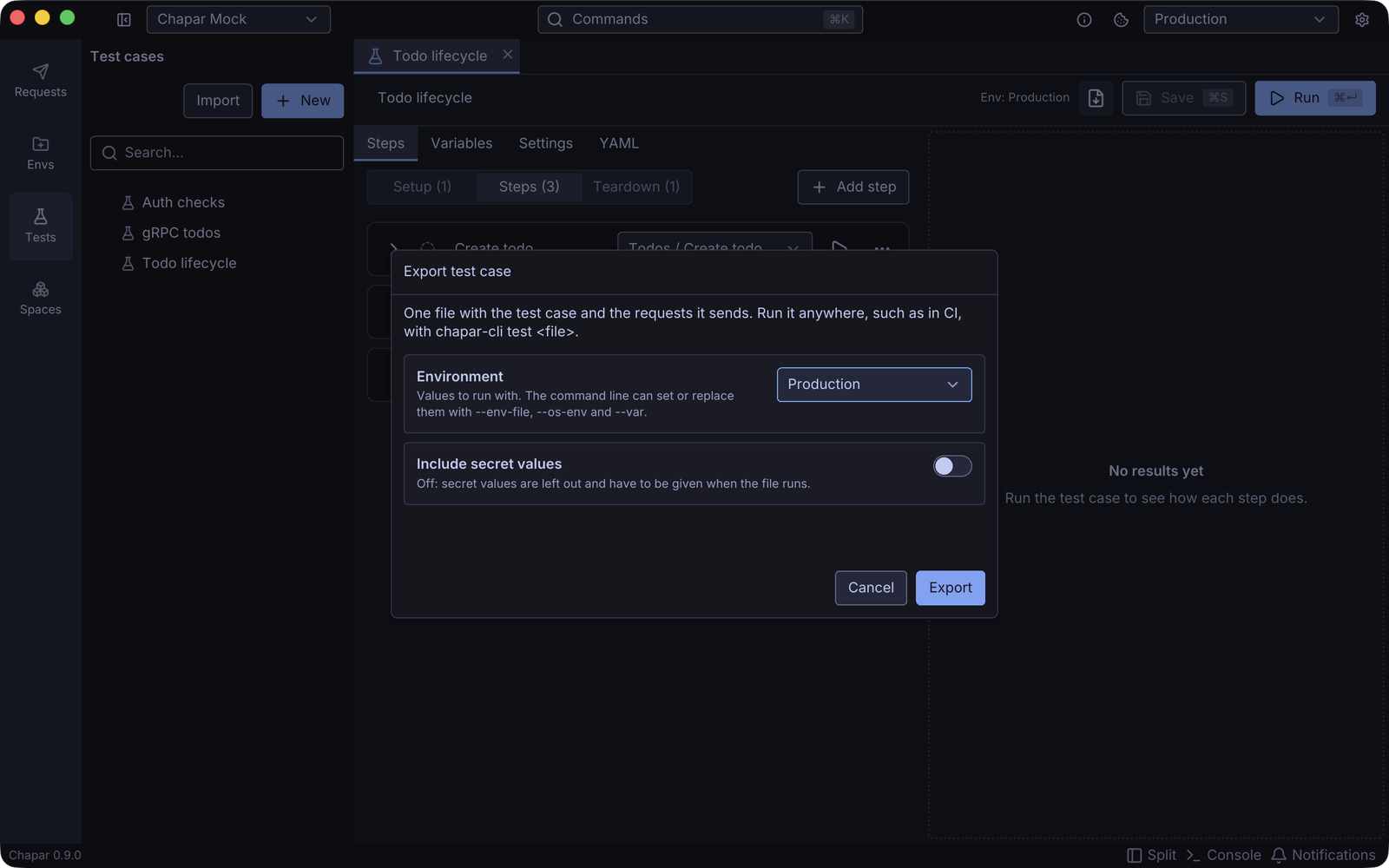
chapar-cli test todo-lifecycle.yaml --os-env API_Secret values are left out unless you choose to include them. chapar-cli warns about any missing key you don’t provide at run time.
Useful flags
--bailstops after the first failing case. Good for long suites on pull requests.--report json=FILEwrites every step, assertion and capture, if you want to post results somewhere yourself.--scriptsruns request scripts even when scripting is off in the app’s settings. Scripts need the script executor, which starts only when a script runs.
The Command Line and CI docs list every flag. If something doesn’t fit your pipeline, open an issue and tell us what you run.